
Contents
SAA
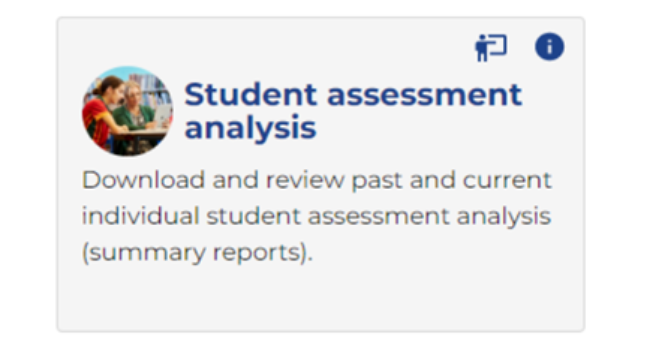
1. Year 1 Number Screening Check Student analysis, Group response analysis, Question summary and Question analysis historical reports are available to view and export via the Student assessment analysis tile. You can also access the reports for the current scholastic year from there once the assessment window has closed.
View Group response analysis
1. Select Year 1 Number Screening Check as Assessment, Group response analysis as Analysis and the relevant year that the student/s was assessed as Date assessed value. Click on Search.
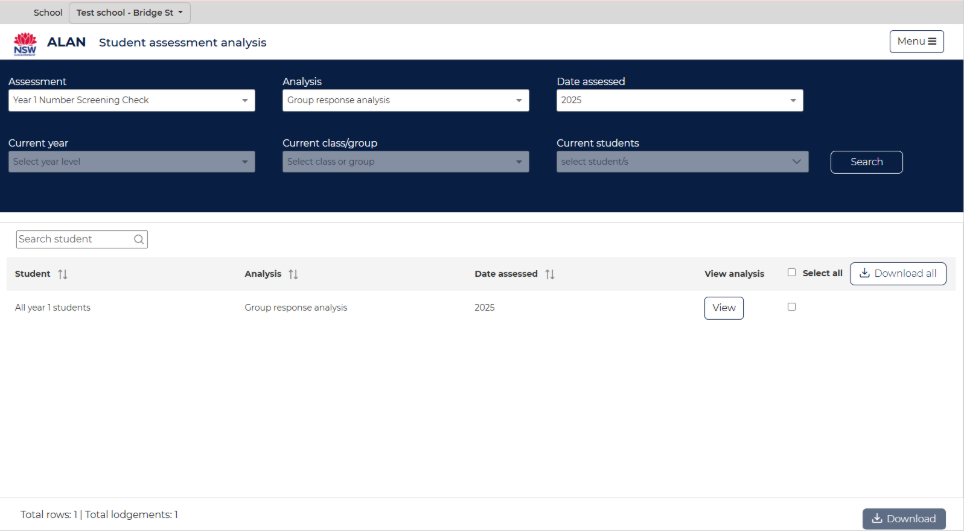
2. A single entry for All Year 1 students would be visible for the selected year assessed.
3. Click on Download all button to export the data in excel format
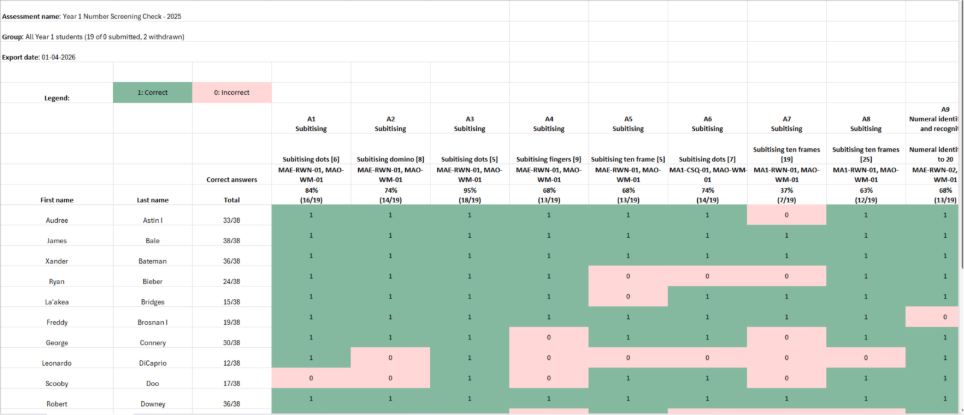
4. You can click on View button to navigate to a live version of the report in the app which is same as the one visible from Y1NSC app.
5. The Group response analysis report will open in a new tab and display student lodgement data for All Year 1 students for the selected year.
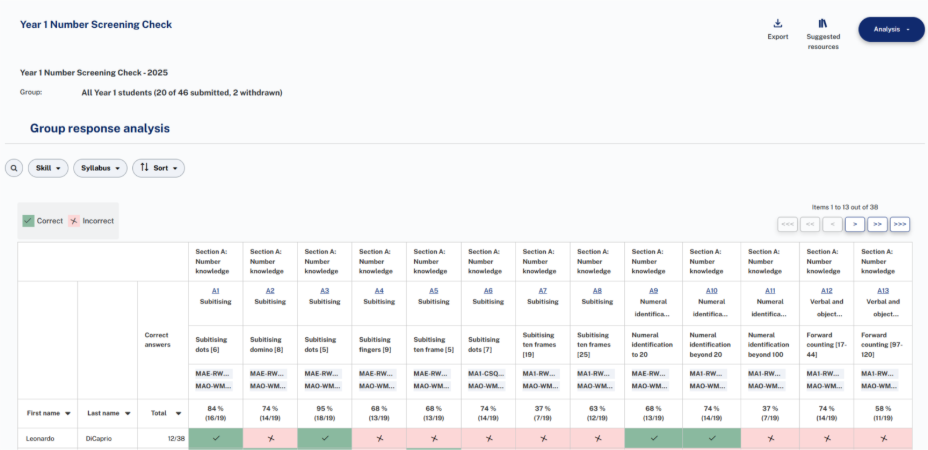
6. You can use filters, sort data and use all other functions on this page before exporting it if required.
7. All other functions on this page are same as accessing from within the Y1NSC app. Please click here for details.
View Student analysis
1. Select Year 1 Number Screening Check as Assessment, Student analysis as Analysis and the relevant year that the student/s was assessed as Date assessed value.
2. Select Current year level and Current class/group for the student. You can select specific student from the Current students dropdown or select all students. Click on Search.
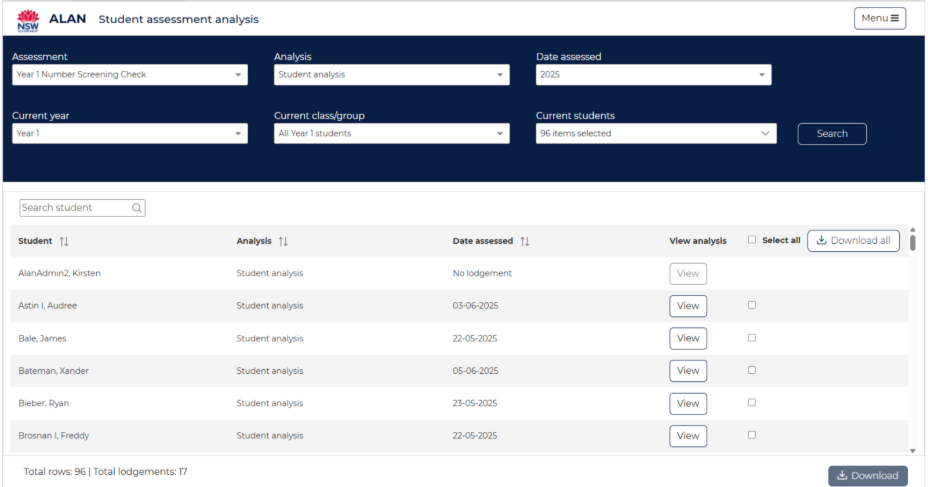
3. Student listing displays all students or specific student based on selection.
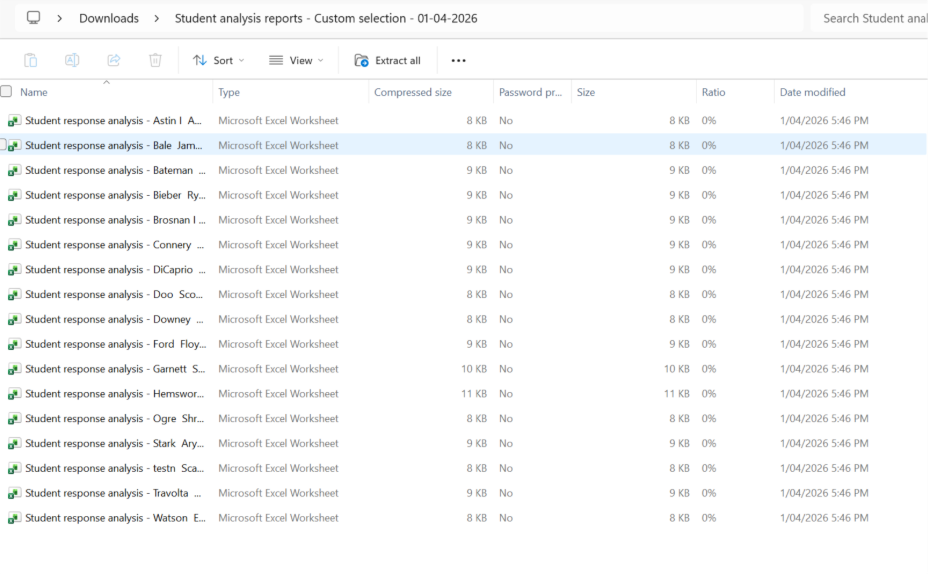
4. Click on Download all button to export the data for all selected students in a zip file.
5. Zipped file contains individual student analysis files in excel format
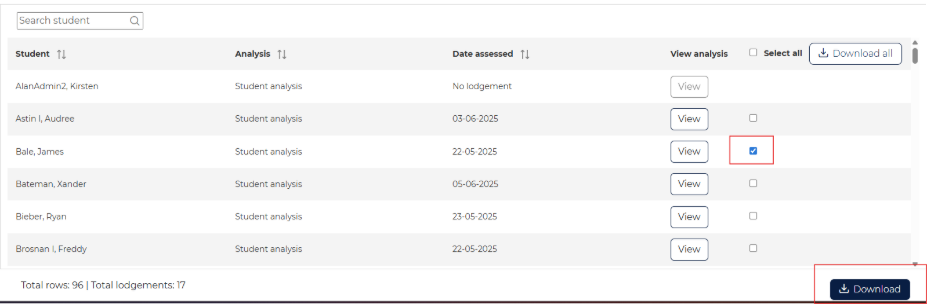
6. You can download the student analysis excel file for an individual student by ticking the check box next to the student and click on the Download button
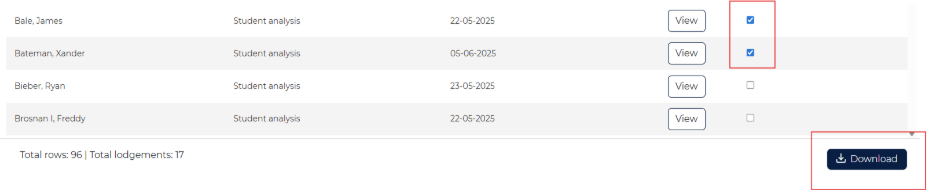
7. If you want to download the student analysis excel file for multiple students then tick the check box for those students and click on Download button

8. You can click on View button to navigate to a live version of the report in the app for a specific student. This live version of the report is same as the one visible from Y1NSC app.
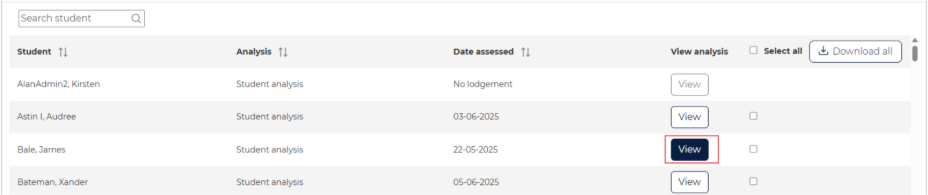
9. The Student analysis report will open in a new tab and display student lodgement data for the selected student.
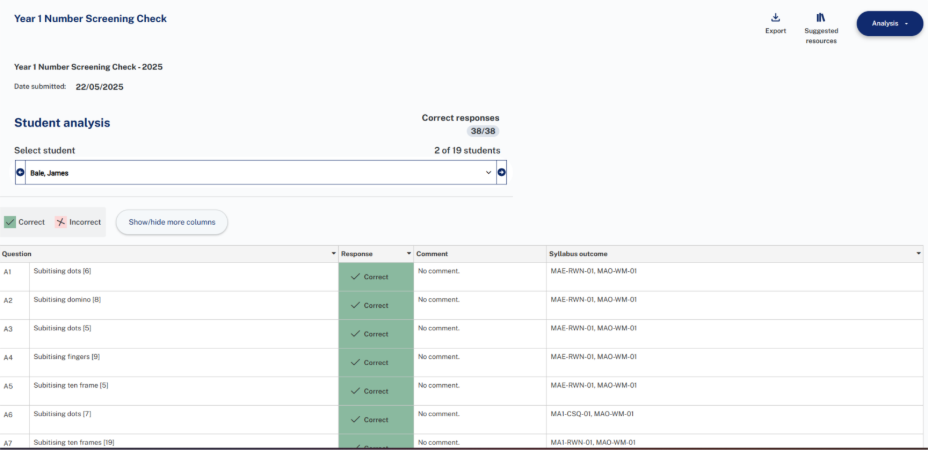
10. You can use filters, sort data and use all other functions on this page before exporting it if required.
11. All other functions on this page are same as accessing from within the Y1NSC app. Please click here for details.
View Question analysis
1. Select Year 1 Number Screening Check as Assessment, Question analysis as Analysis and the relevant year that the student/s was assessed as Date assessed value. Click on Search.
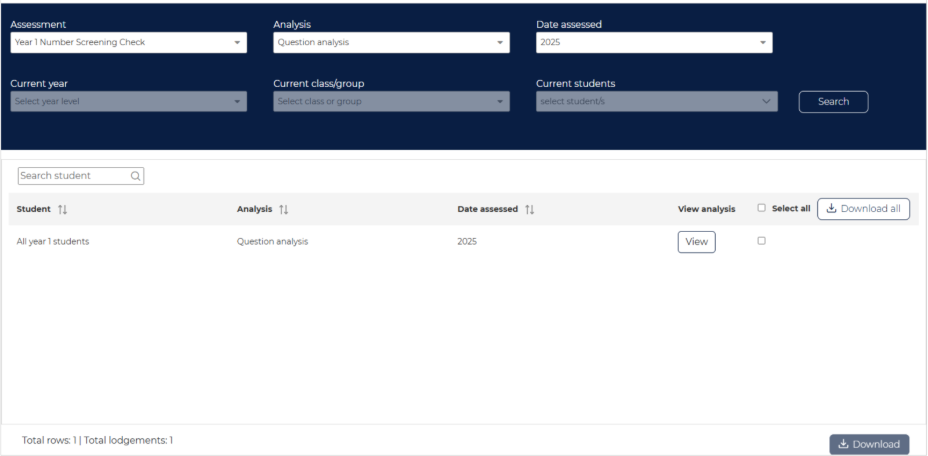
2. A single entry for All Year 1 students would be visible for the selected year assessed.
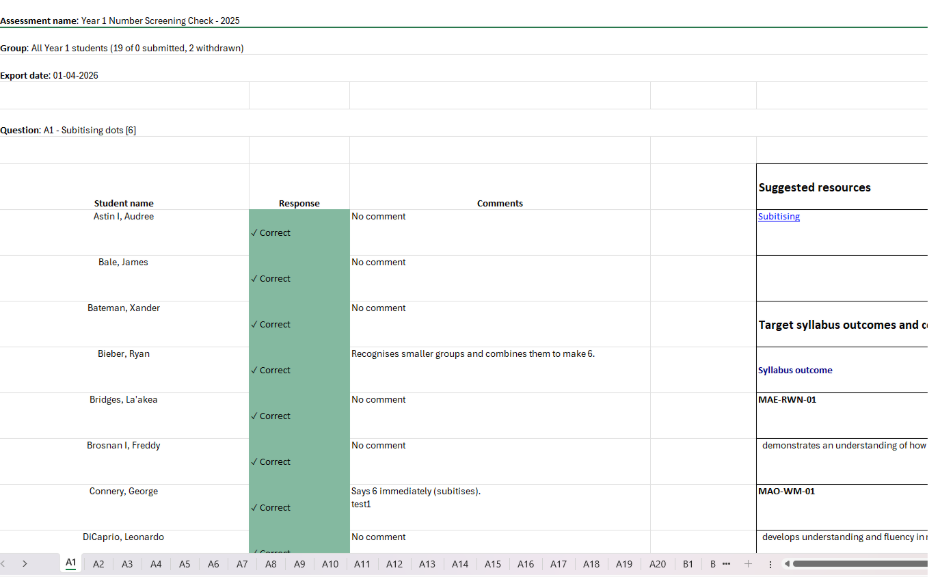
3. Click on Download all button to export the data in excel format
4.You can click on View button to navigate to a live version of the report in the app which is same as the one visible from Y1NSC app.
5. The Question analysis report will open in a new tab and display student lodgement data for All Year 1 students for the selected year.
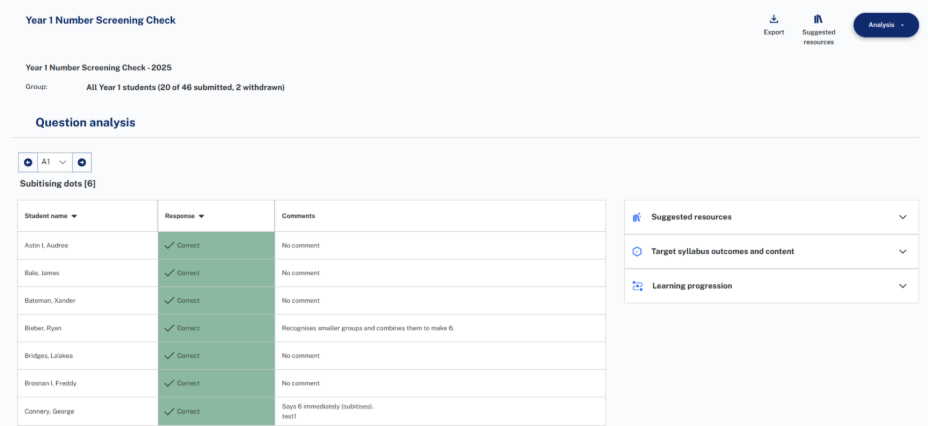
6. You can use filters, sort data and use all other functions on this page before exporting it if required.
7. All other functions on this page are same as accessing from within the Y1NSC app. Please click here for details.
View Question summary
1. Select Year 1 Number Screening Check as Assessment, Question summary as Analysis and the relevant year that the student/s was assessed as Date assessed value. Click on Search.
2. A single entry for All Year 1 students would be visible for the selected year assessed.
3. Click on Download all button to export the data in excel format
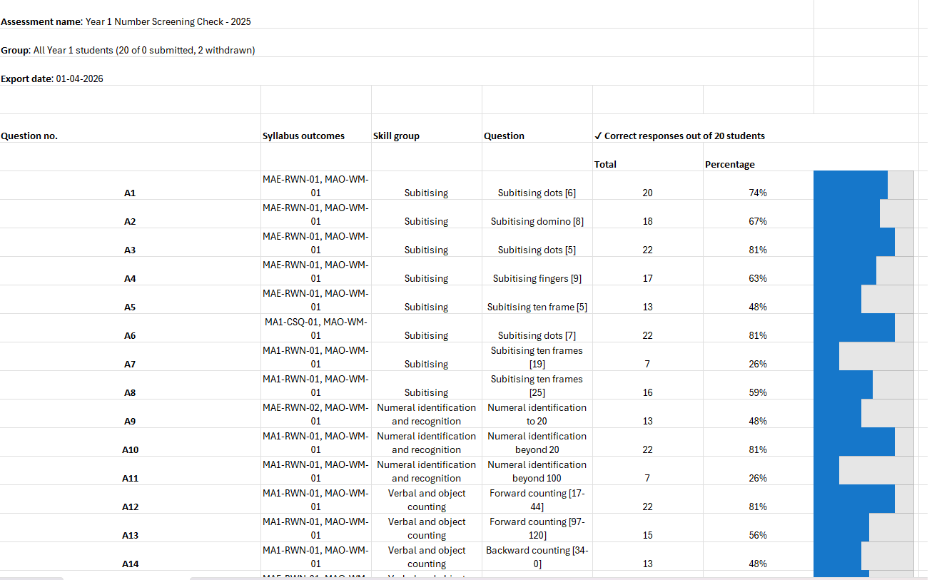
4. You can click on View button to navigate to a live version of the report in the app which is same as the one visible from Y1NSC app.
5. The Question summary report will open in a new tab and display student lodgement data for All Year 1 students for the selected year.
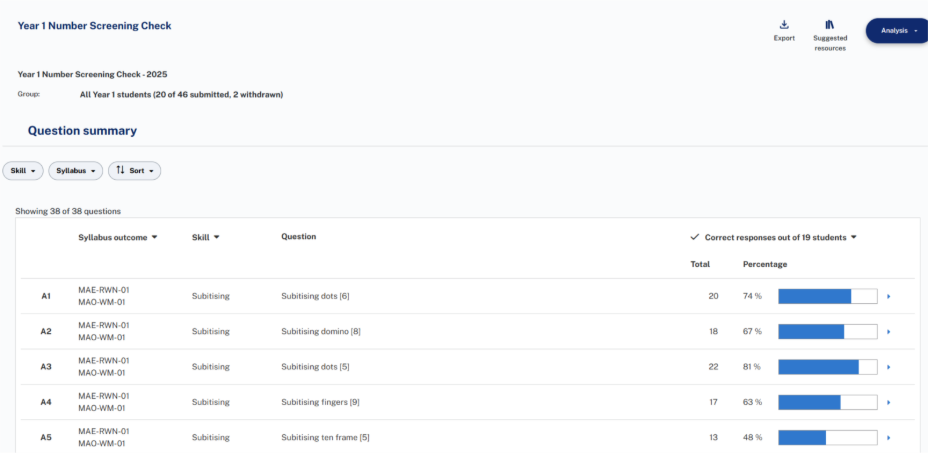
6. You can use filters, sort data and use all other functions on this page before exporting it if required.
7. All other functions on this page are same as accessing from within the Y1NSC app. Please click here for details.