
Contents
View Group response analysis
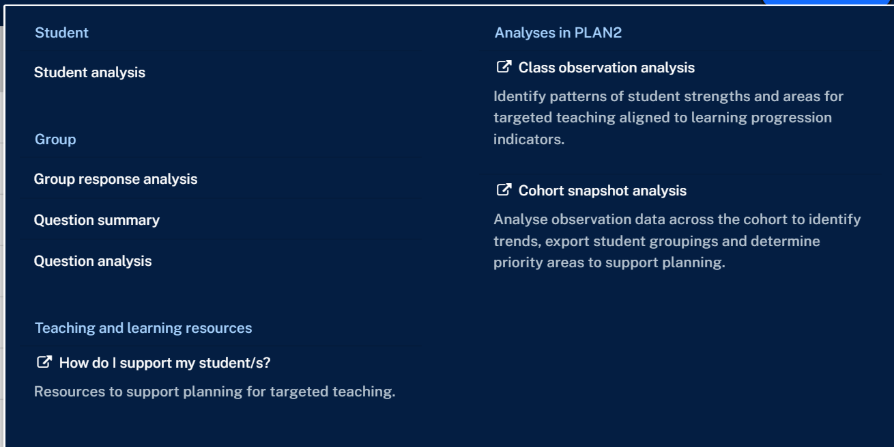
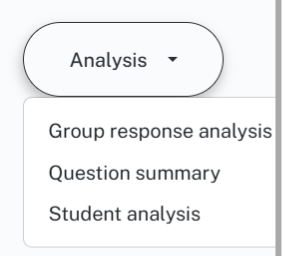
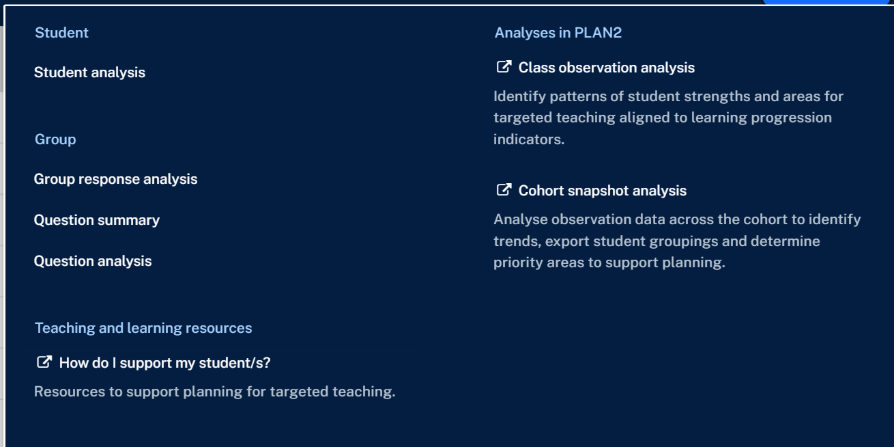
1. In the student list page, select the Analysis button then select Group response analysis or alternatively switch to the Group response analysis report from any of the reports by selecting the sub menu in the Analysis button.
2. The Group response analysis report will open in a new tab and display student lodgement data for the selected class/group.
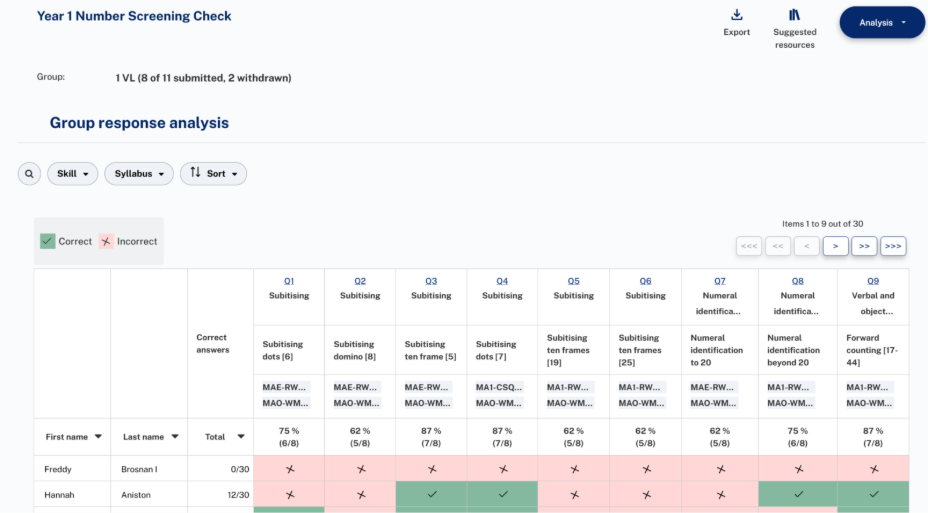
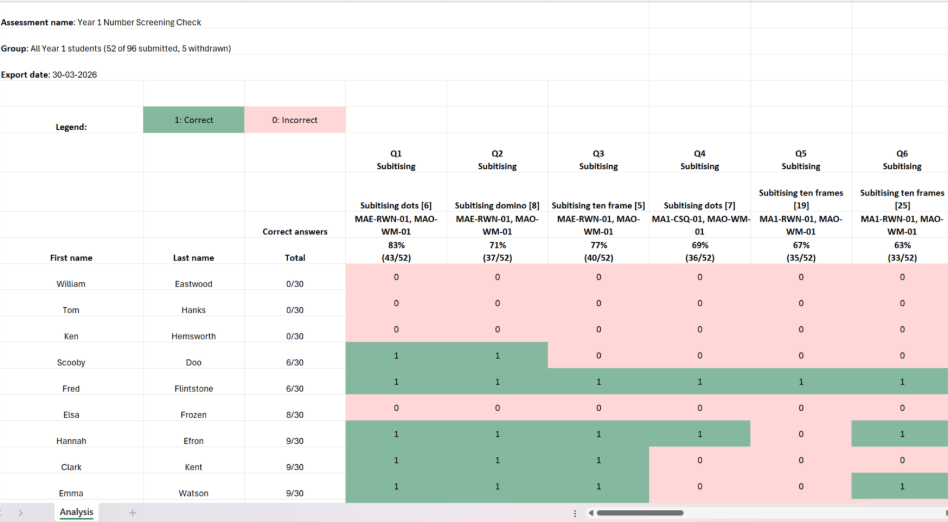
- Each row displays an individual student's results.
- Each column covers a single question from the assessment, with the question number, skill group, question short name, syllabus outcome, count of students as well as percentage who answered the corresponding question correctly at the top of each column.
- Correct answers column displays the total score for each student
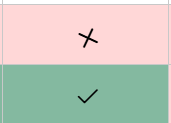
- Correct answers are shown as a tick in a green cell.
- Incorrect answers are shown as a cross in a pink cell.
3. The report is responsive to the width of the browser window and can display more columns on a wider screen.
4. Use the arrows above the top right corner of the table to navigate the columns displayed on the screen. Button with single arrow displays the next question to the left/right, button with double arrows displays the next page to the left/right and button with three arrows displays the first page to the left or last page to the right.
5. The table can be sorted on both rows and columns.
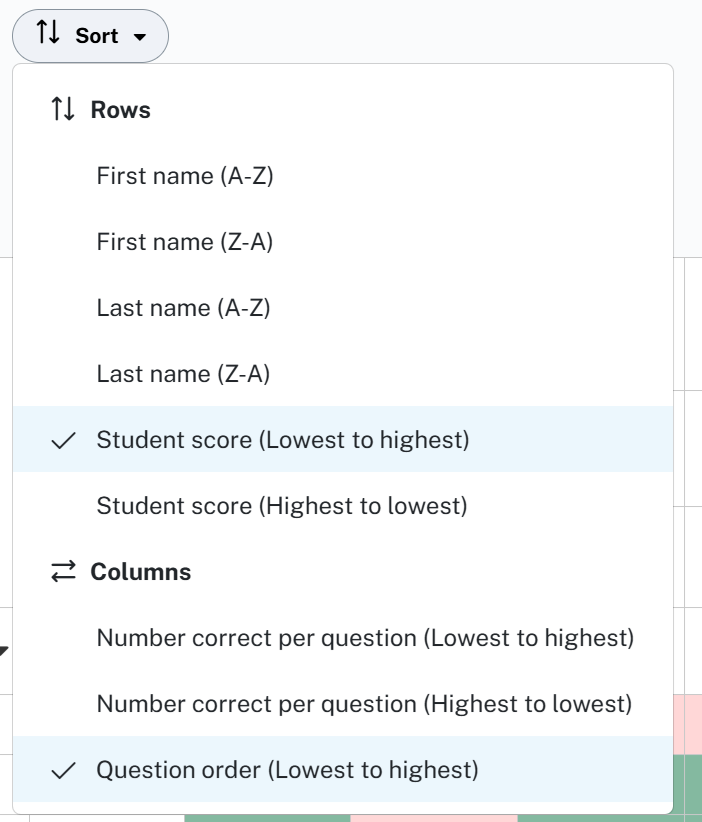
6. Rows can be sorted by first name, last name as well as student score. The default row order is by Student score (Lowest to Highest).
7. Columns can be sorted by number correct per question and question order. The default column order is by Question order (Lowest to highest).
8. Rows can be filtered using the student name search.
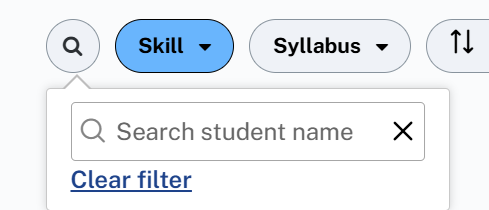
9. Columns can be filtered using the Skill Group and Syllabus selections.

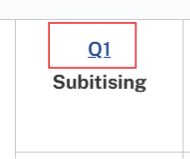
10. Selecting a question number navigates to the Question analysis report with the corresponding question selected.
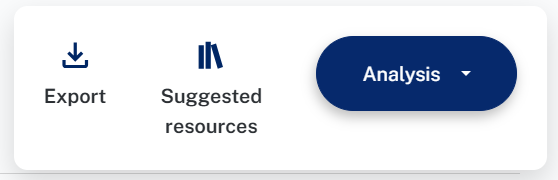
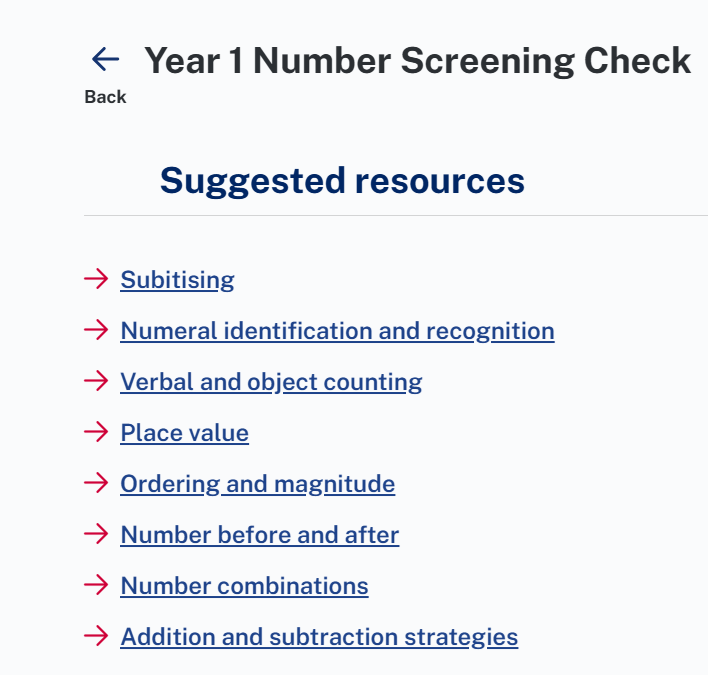
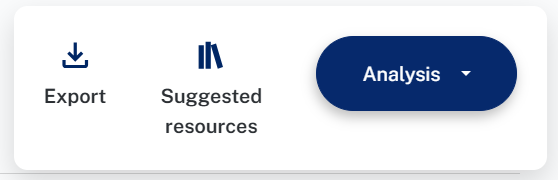
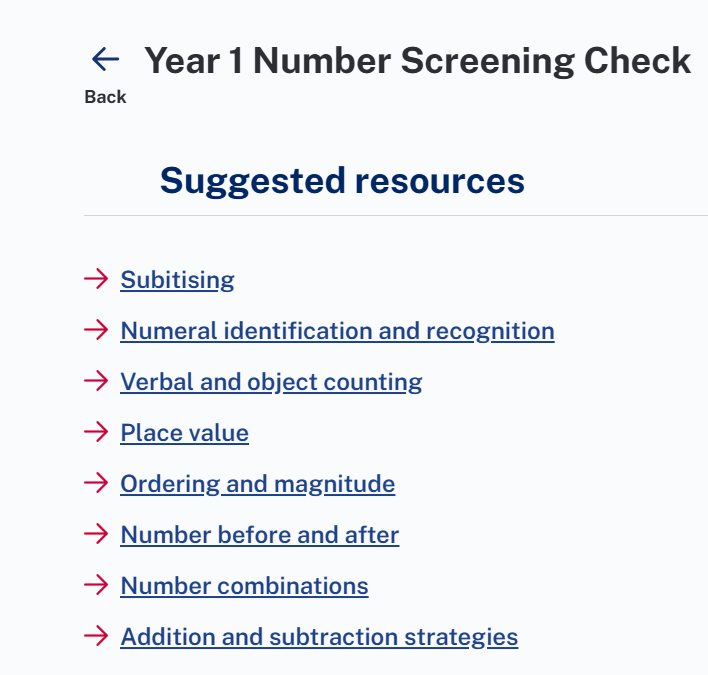
11. Export button in the top right corner of the report downloads the data and Suggested resources button displays resource links for each skill group.
12. Export downloads the data on user’s system in excel format.
View Student analysis
1. After lodging an assessment, select View next to the student’s name to navigate to the Student analysis page.

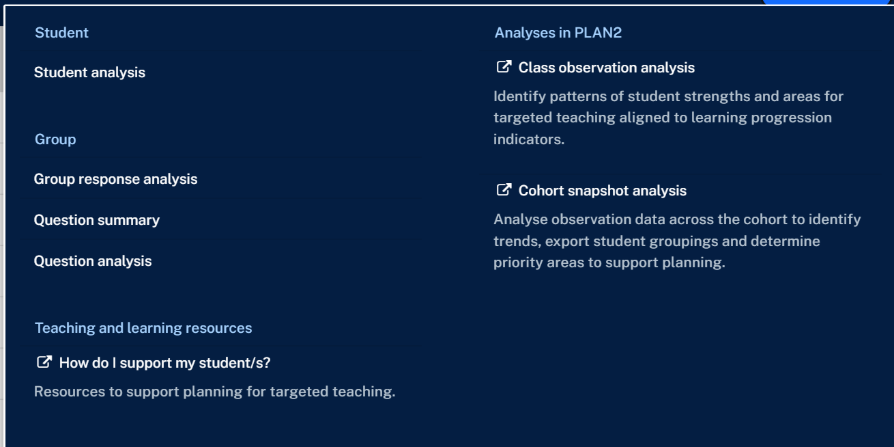
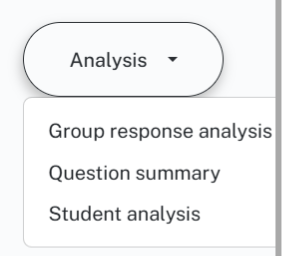
2. You can also navigate to the Student analysis page by opening the Analysis menu and selecting Student analysis or alternatively switch to the Student analysis report from any of the reports by selecting the sub menu in the Analysis button.
3. The Student analysis report will open in a new tab.
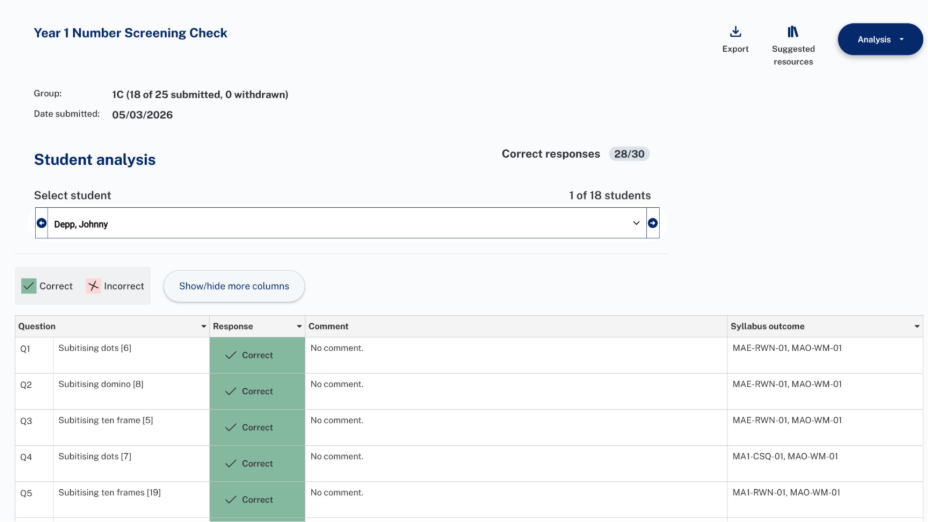
4. Students are shown one at a time and can be navigated between using the left and right arrow buttons or by selecting from the drop down of student names.

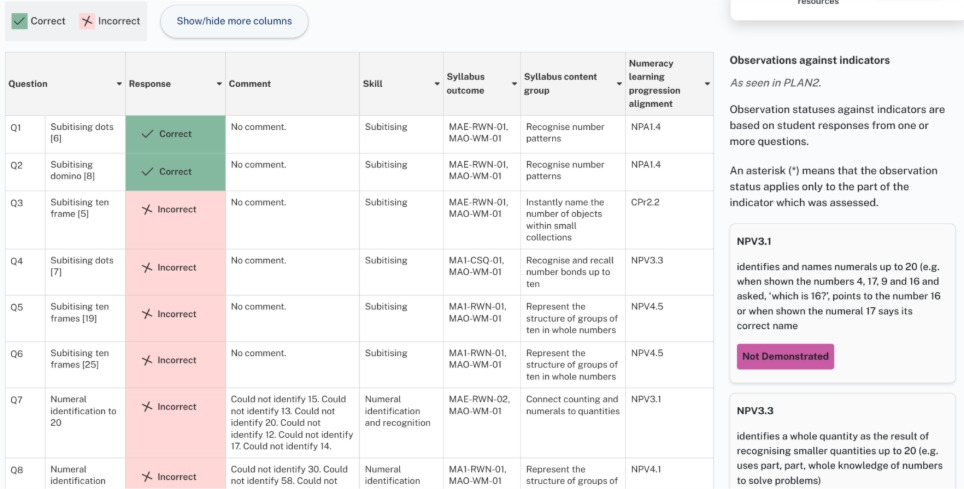
5. All questions in the assessment are shown, with the response selected by the student.
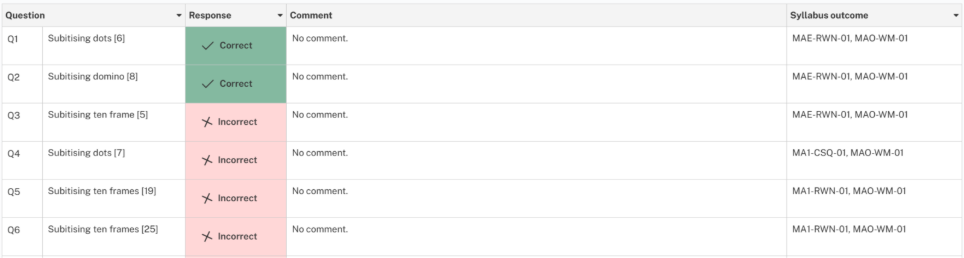
- Correct responses are shown in a green box with a tick.
- Incorrect responses are in a pink box with a cross.
- Default display displays question number, question short name, response selected, comment and syllabus outcome as a row for each student.
6. Selecting show/hide columns button displays a modal to view additional columns – Skill group, syllabus content group, progression indicator and PLAN2 status for each indicator
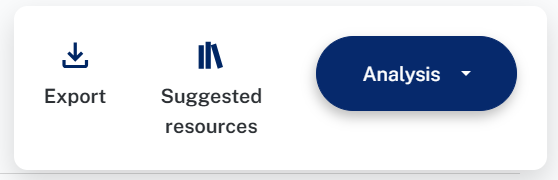
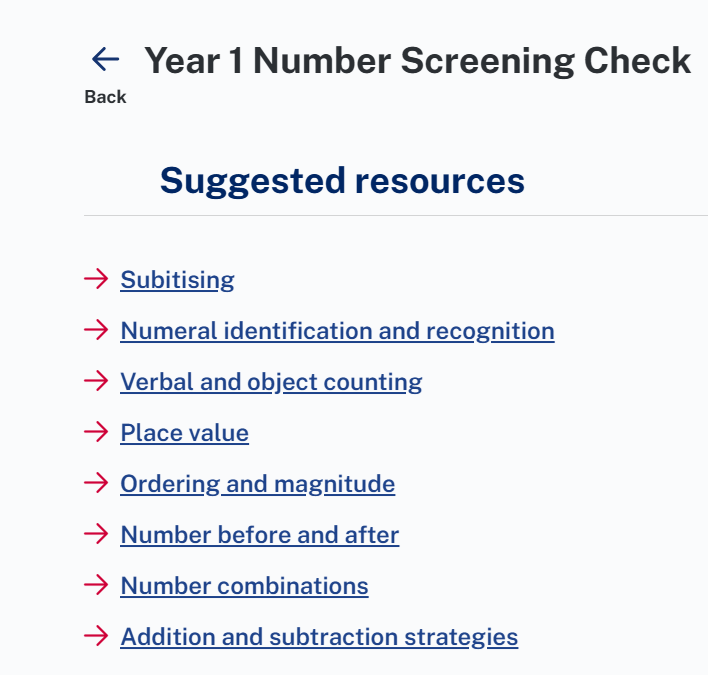
7. Export button in the top right corner of the report downloads the data and Suggested resources button displays resource links for each skill group.
8. Selecting the Export button gives 3 options to download the data: PDF file for individual student analysis, Excel file for individual student analysis and zip file for the whole class/group.
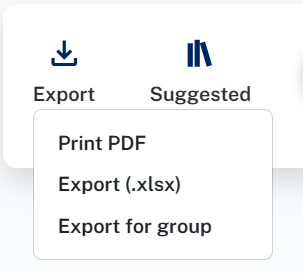
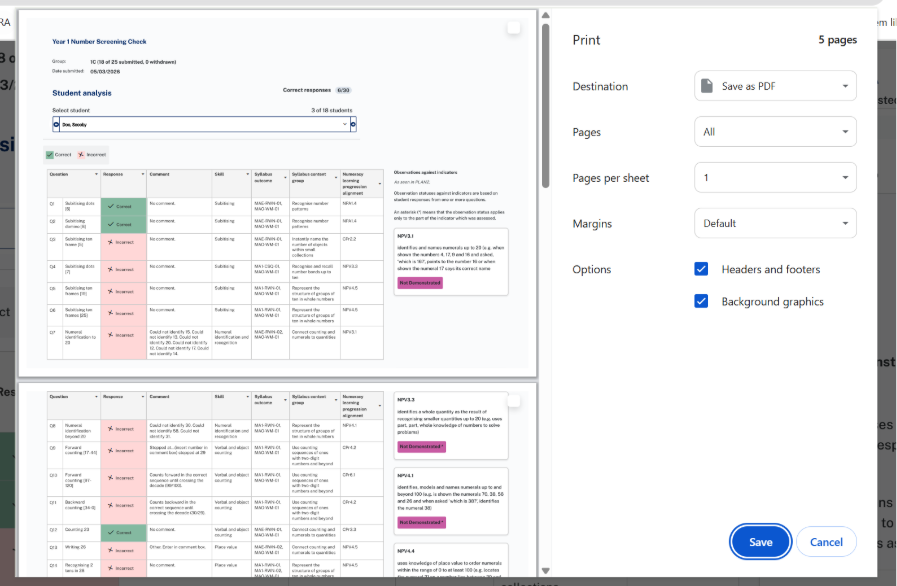
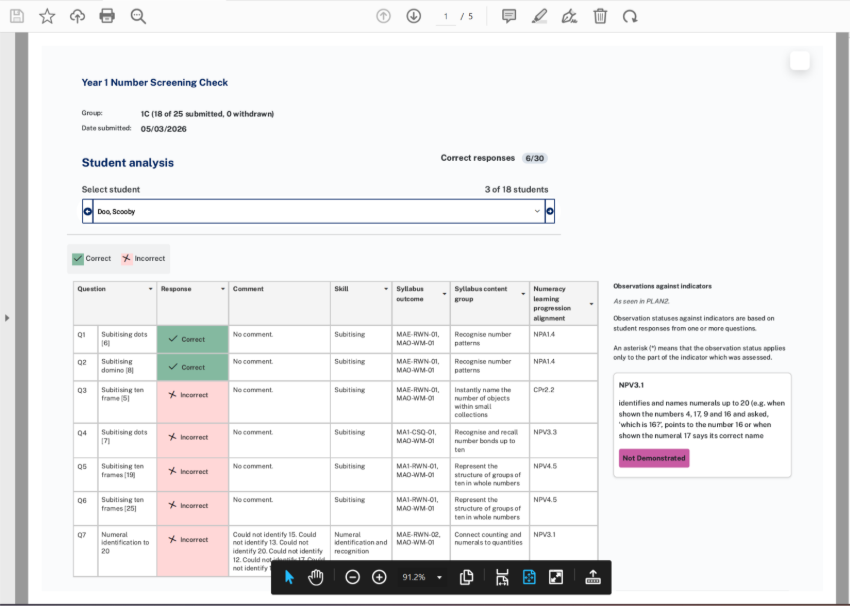
9. Select Print PDF to use the Print function and save the student analysis data for individual student selected in PDF format. Destination is preselected as Save as PDF. Select the Save button and provide relevant file name.
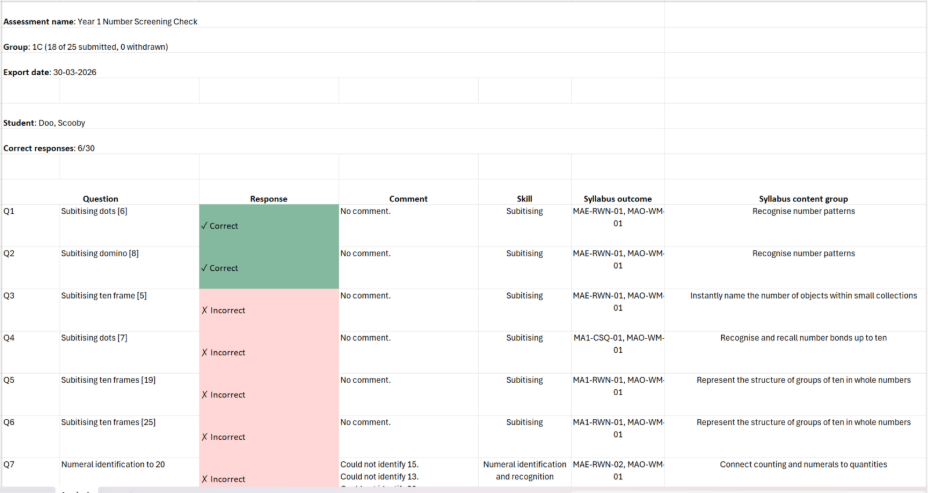
10. Select Export (.xlsx) to save the student analysis data for individual student selected in excel format.
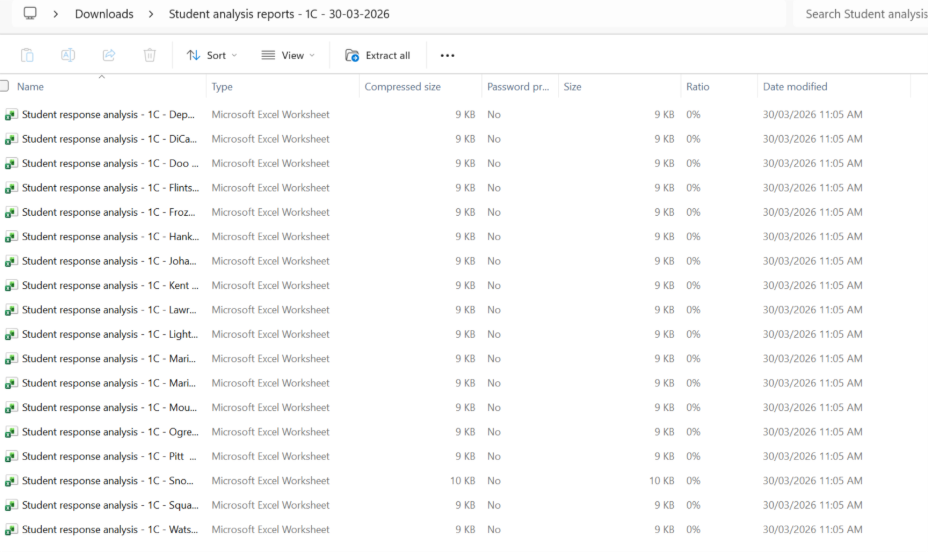
11. Select Export for group to save the student analysis data for the whole class/group selected. A zip file is created on the user’s system with contains individual excel files for each student in the class/group.
View Question analysis
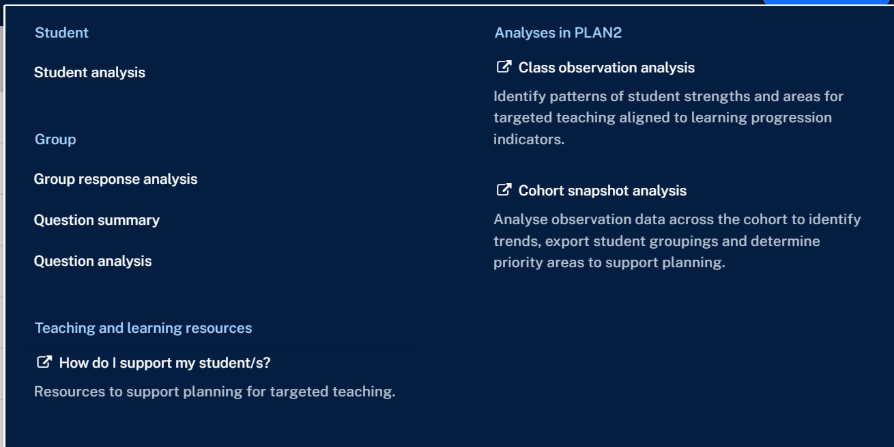
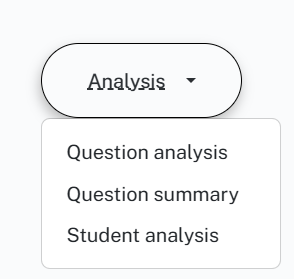
1. In the student list page, select the Analysis button then select Question analysis or alternatively switch to the Question analysis report from any of the reports by selecting the sub menu in the Analysis button
2. The Question analysis report will open in a new tab.
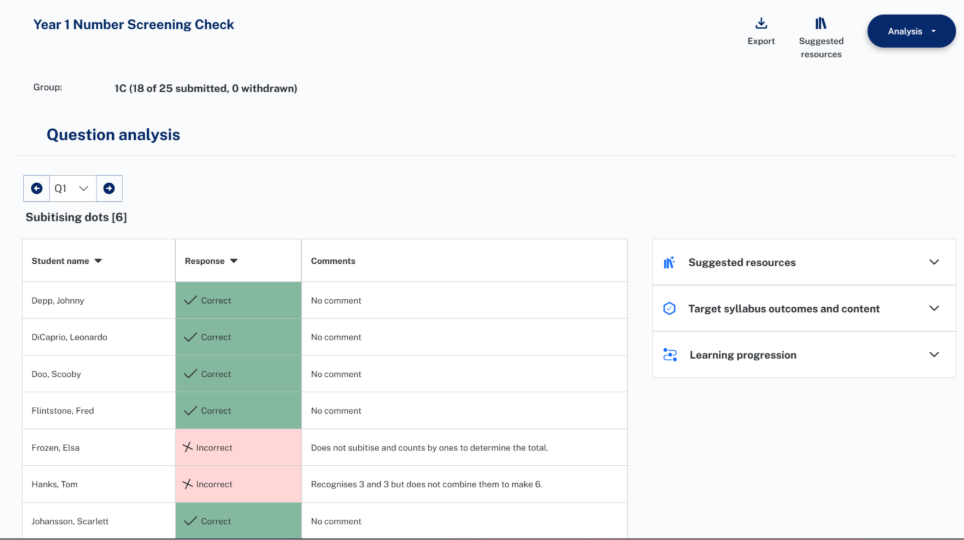

- Questions are shown one at time starting from the first question with the question number and short name and a table displaying all student responses for corresponding question selected.
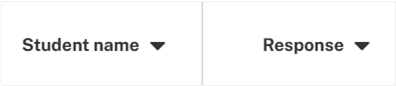
- Results can be sorted by student name and response using the arrow in the header.
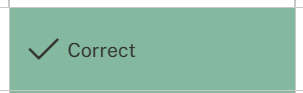
- Correct responses are shown next to a tick in a green cell.
- Incorrect responses are shown next to a cross in a pink cell.

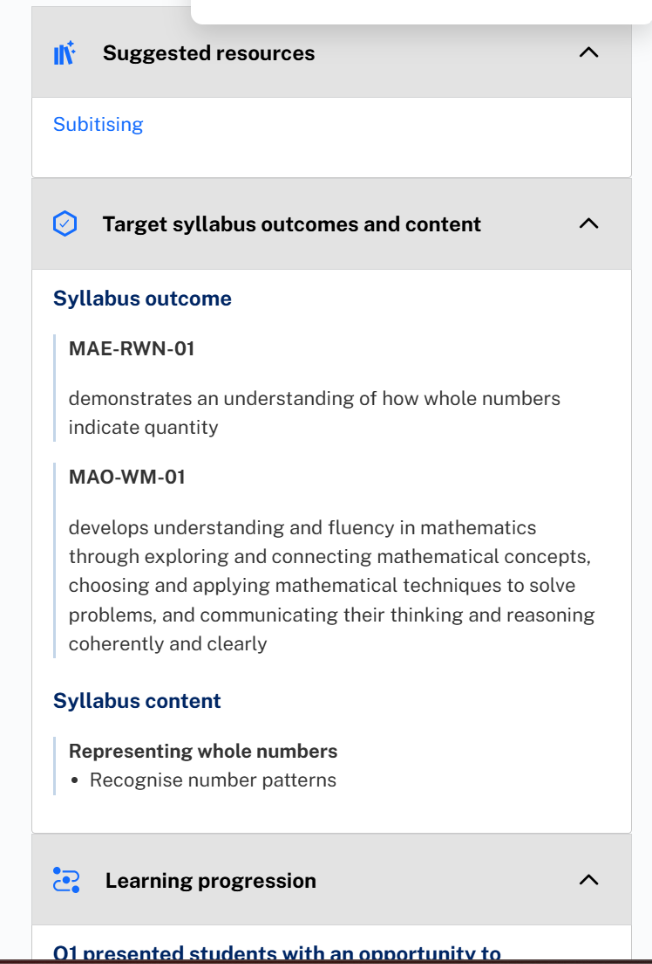
- Mapping details for each question are shown on the right-hand side of the screen, including suggested resources, target syllabus outcomes and content and learning progression. These sections can be expanded or collapsed by selecting the relevant header and are collapsed by default.
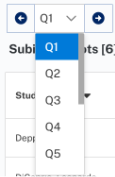
Use horizontal arrows to navigate between questions in the order they appear in the assessment. Alternatively, use the dropdown menu to jump to a specific question.
3. Export button in the top right corner of the report downloads the data and Suggested resources button displays resource links for each skill group.
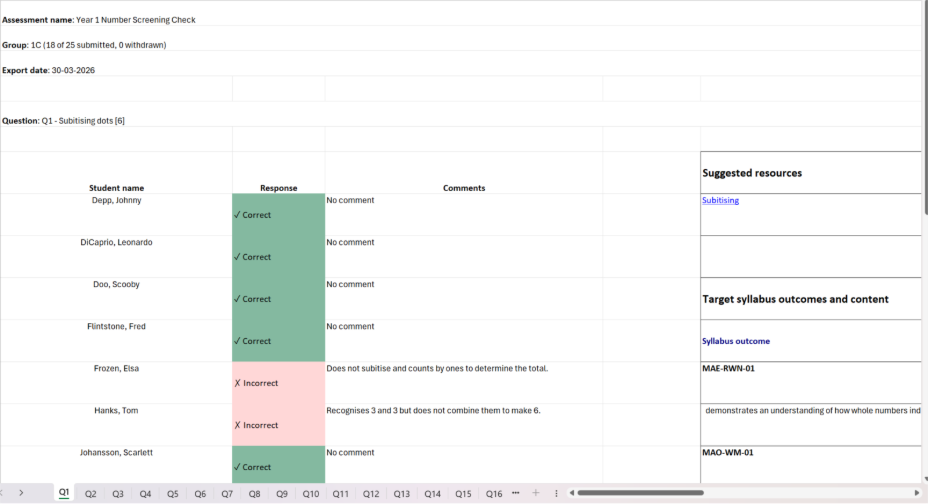
4. Export downloads the data on user’s system in excel format. Details for each question is displayed in it’s own tab in the worksheet.
View Question summary
1. In the student list page, select the Analysis button then select Question summary or alternatively switch to the Question summary report from any of the reports by selecting the sub menu in the Analysis button.
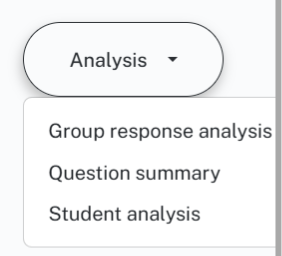
2. The Question summary report will open in a new tab.
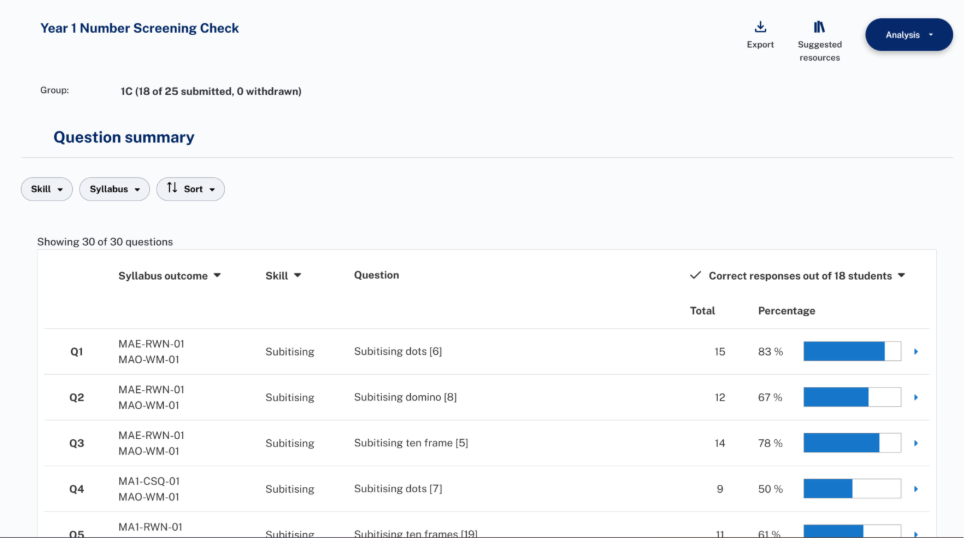
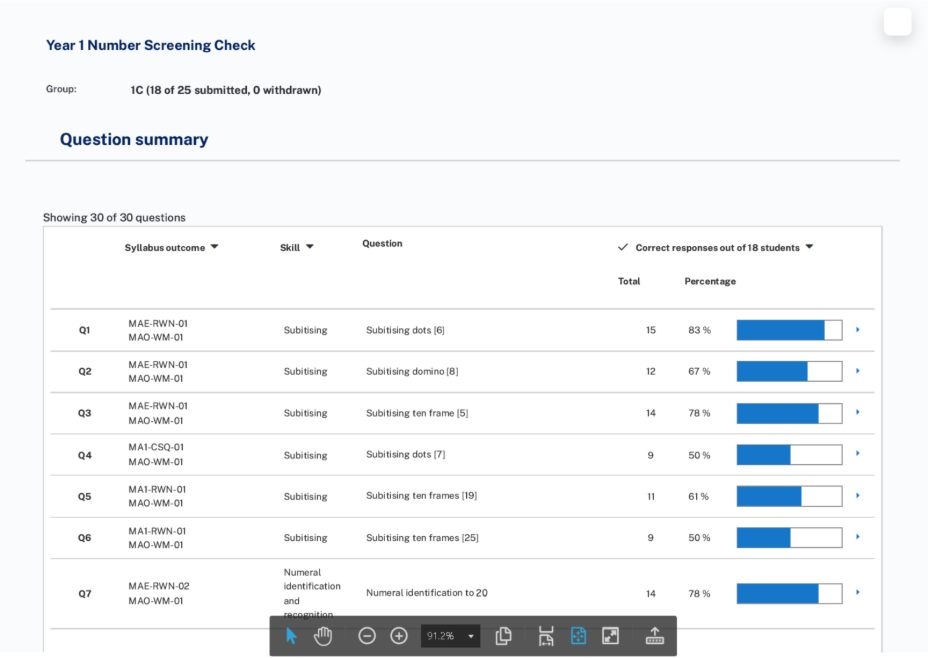
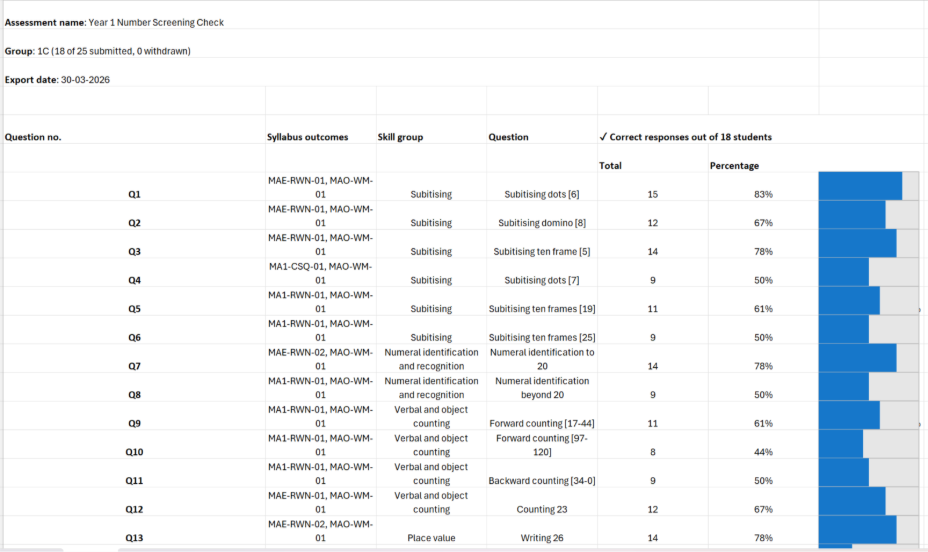
- Each row displays the question number, syllabus outcome, skill group, question short name, count and percentage of students who answered the question correctly.
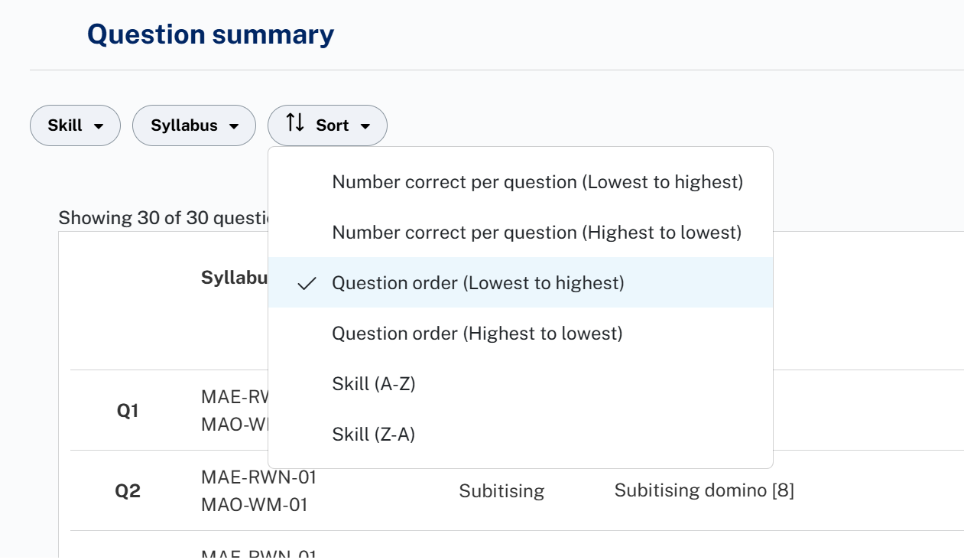
- The report can be sorted by number correct per question, question order and skill group by selecting from the Sort dropdown menu. The default sorting is by question order (Lowest to highest). You can also sort using the syllabus outcomes, skill group and correct responses column headings.
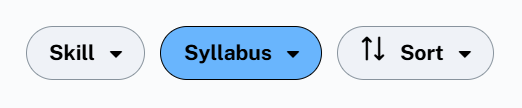
3. The report can be filtered by skill group and syllabus outcome by selecting from the filters.
4. Clicking on a specific row would navigate to the Question analysis report with the corresponding question selected.

5. Export button in the top right corner of the report downloads the data and Suggested resources button displays resource links for each skill group.
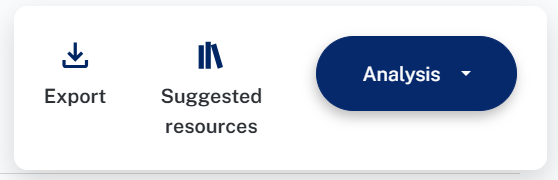
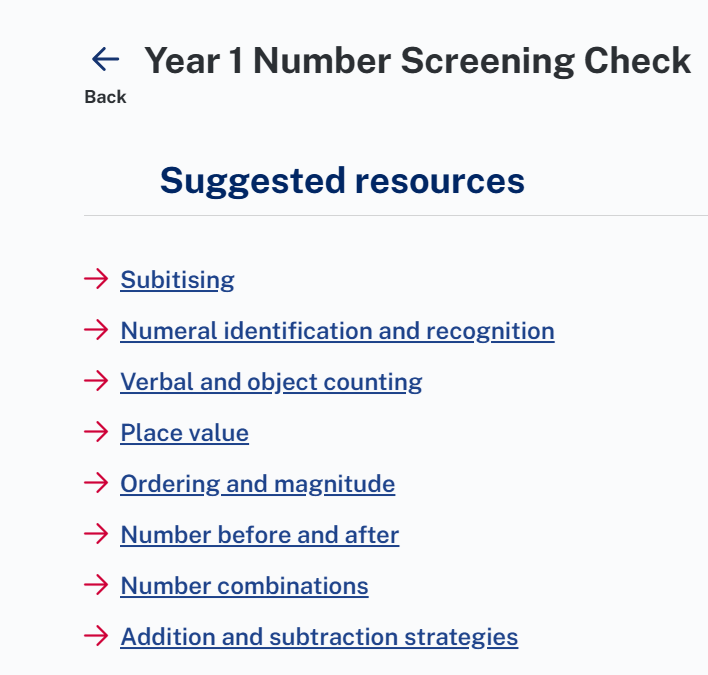
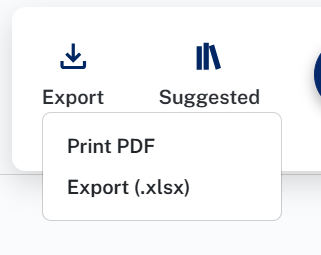
6. Clicking on Export button gives two options to download the data: Excel version and PDF version.
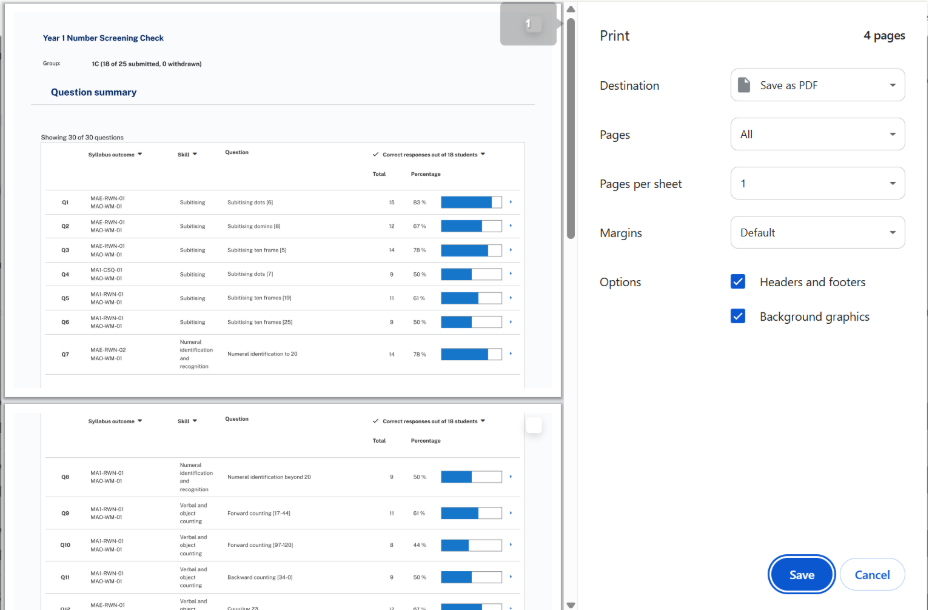
7. Select Print PDF to use the Print function and save the data in PDF format. Destination is preselected as Save as PDF. Click on Save button and provide relevant file name.
8. Export downloads the data on user’s system in excel format.
Note: All above reports display data only for students who have their assessment lodged. Withdrawn students and in progress assessments are not displayed.