
Overview
- Student responses in the Year 1 Number Screening Check are mapped to the indicators from the National Numeracy Learning Progression with observations automatically recorded in PLAN2.
- PLAN2 supports the use of National Literacy and Numeracy Learning Progressions in all NSW schools.
How to view assessment information in PLAN2 from the Year 1 Number Screening Check app
1. From the Year 1 Number Screening Check app, select Analysis then select Class observations analysis or Cohort snapshot analysis.
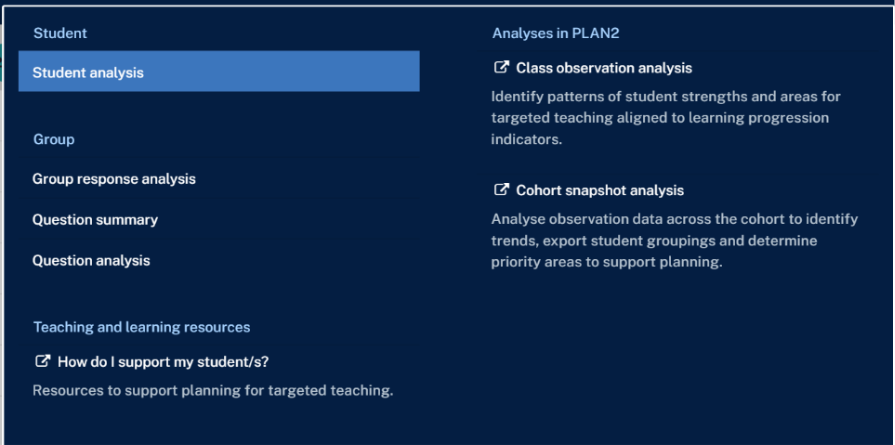
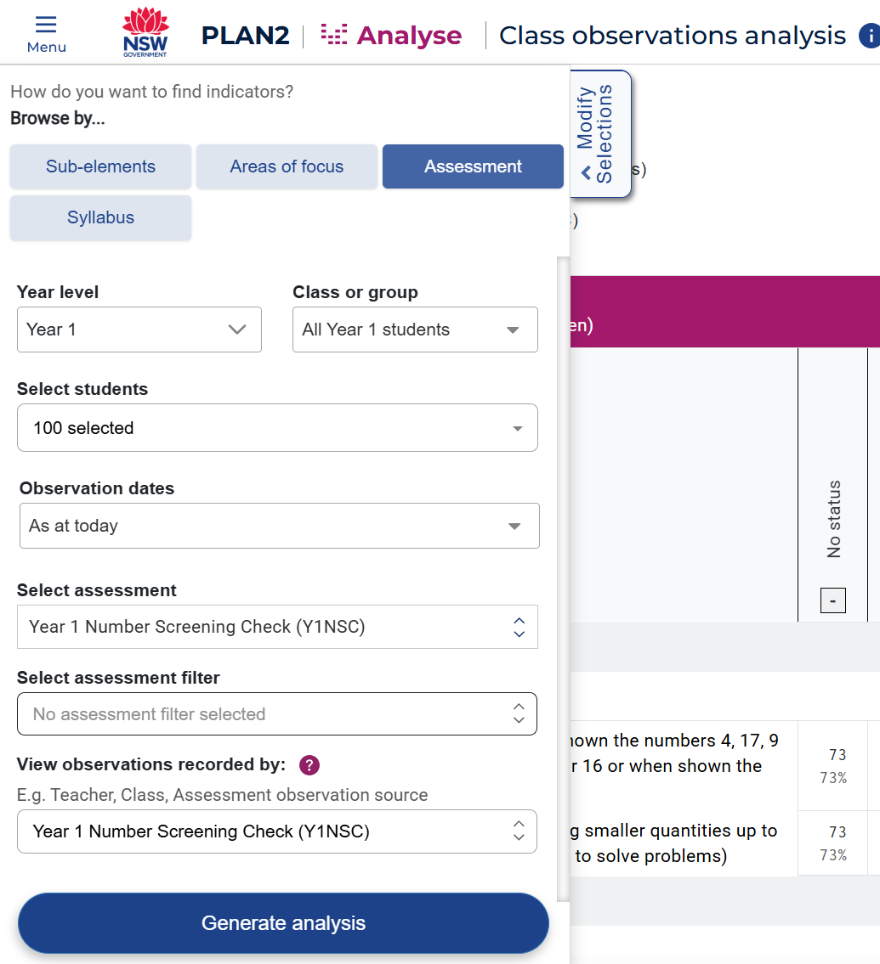
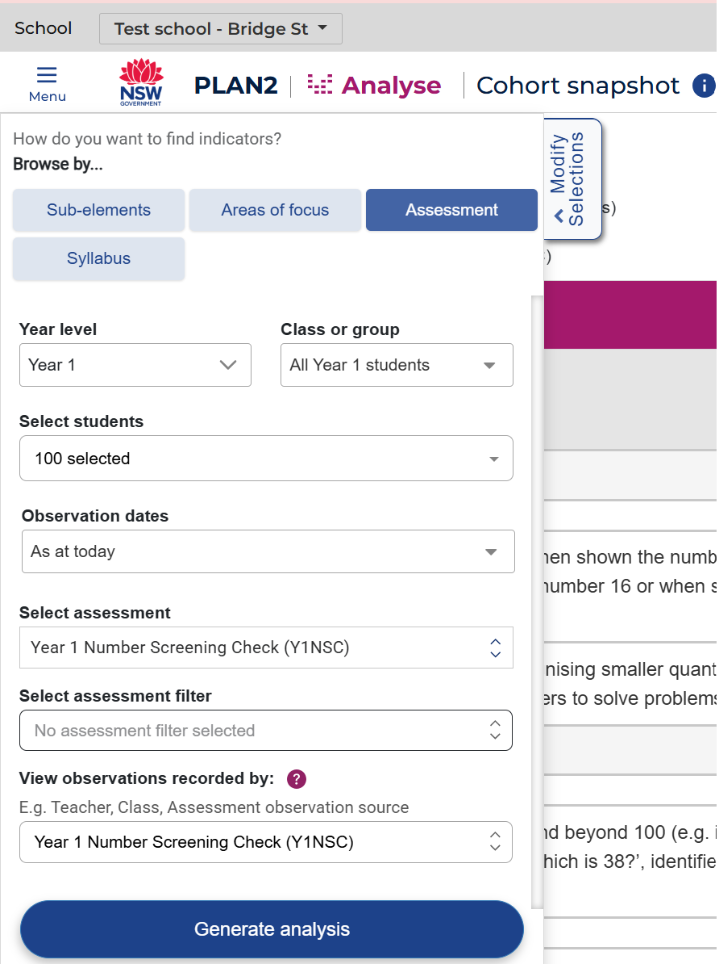
2. PLAN2 will open in a new browser tab. The Cohort snapshot analysis or the Class observations analysis will be generated based on your selected year level and class/group. These fields will be pre-filled for you:
- Year level - Value selected in Y1NSC app (Year 1)
- Class or group - Value selected in Y1NSC app
- Select students - Students visible in the class/group selected in Y1NSC app
- Observation dates - defaults to "As at today"
- Select assessment - Year 1 Number Screening Check (Y1NSC)
- View observations recorded by - Year 1 Number Screening Check (Y1NSC)
How to view assessment information in PLAN2 app
1. Log in to the ALAN homepage.
2. In the ALAN homepage, select PLAN2.
3. Select Class observations analysis or Cohort snapshot.
4. In Class observations analysis, select the Assessment tab.
5. Select the Year level, Class or group and Student/s you want to view.
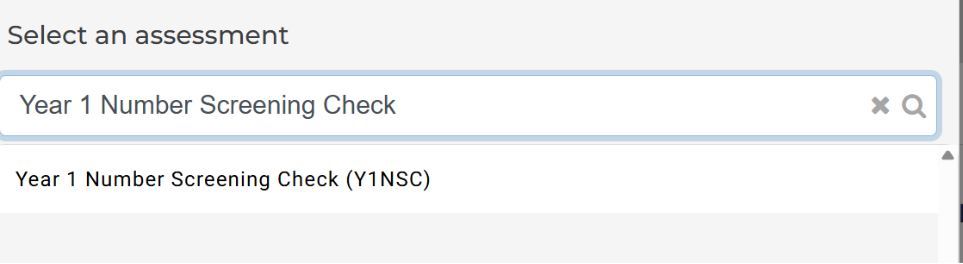
6. In the Select an assessment field search for Year 1 Number Screening Check (Y1NSC).
7. In the View observations recorded by field, select Last recorded observation (teacher or assessment)
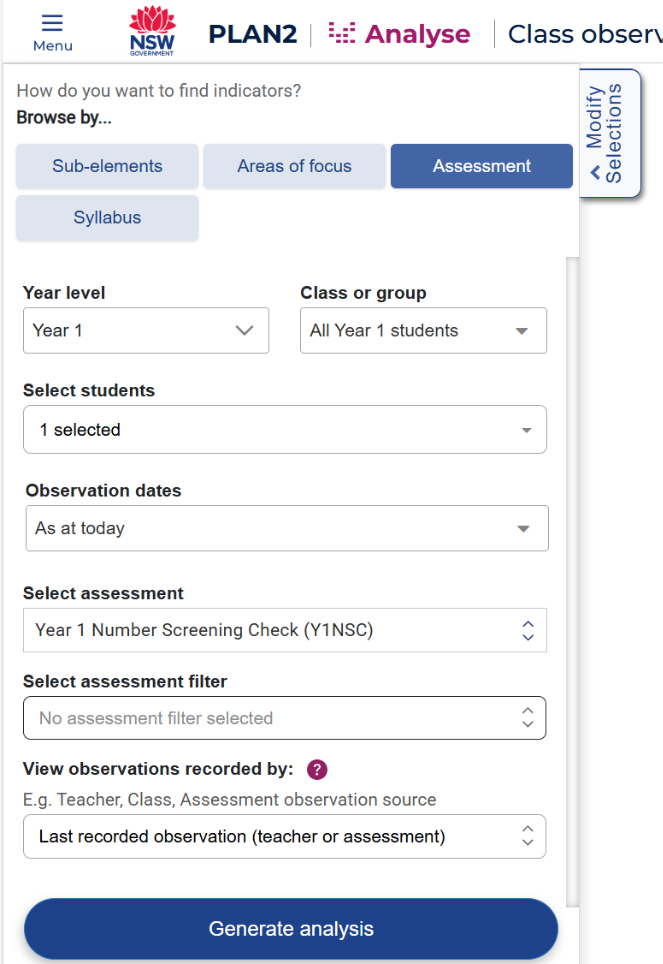
8. By selecting the Year 1 Number Screening Check (Y1NSC) as the assessment, the sub-elements and levels will be filtered to show only the sub-element and levels mapped to the Number Screening Check.
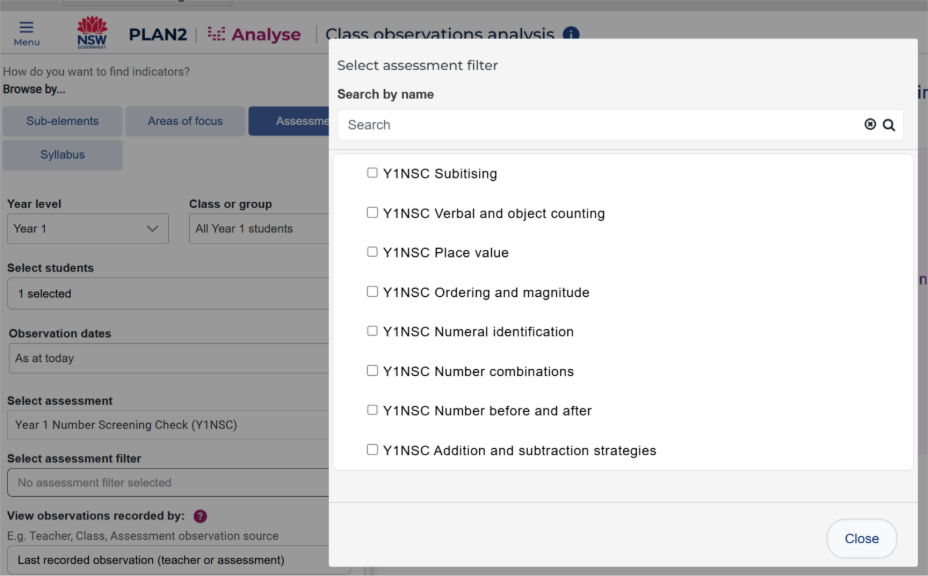
9. You can also select values from the assessment filter if you want to view results for a specific Skill Group.
10. Select the Generate analysis button to view the Class observations analysis data.
11. The Class observations analysis data table will display the indicators and most recent indicator status recorded for each student.
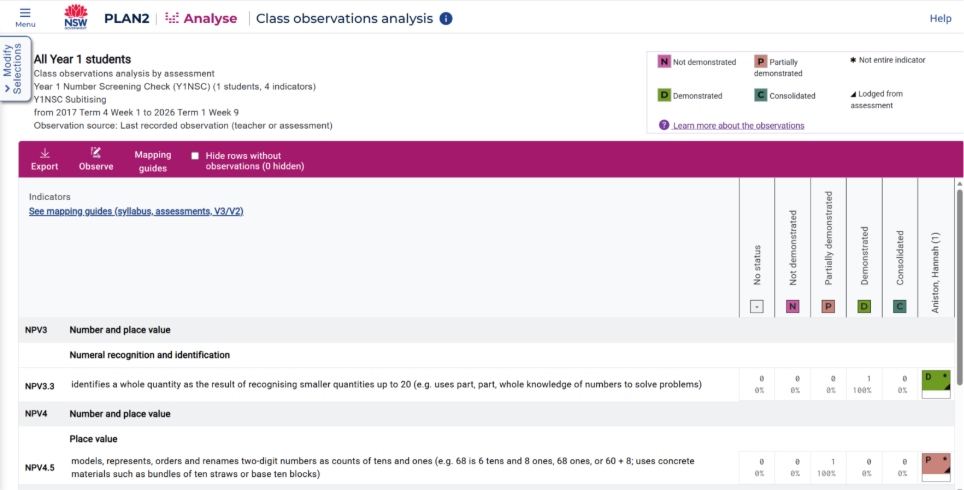
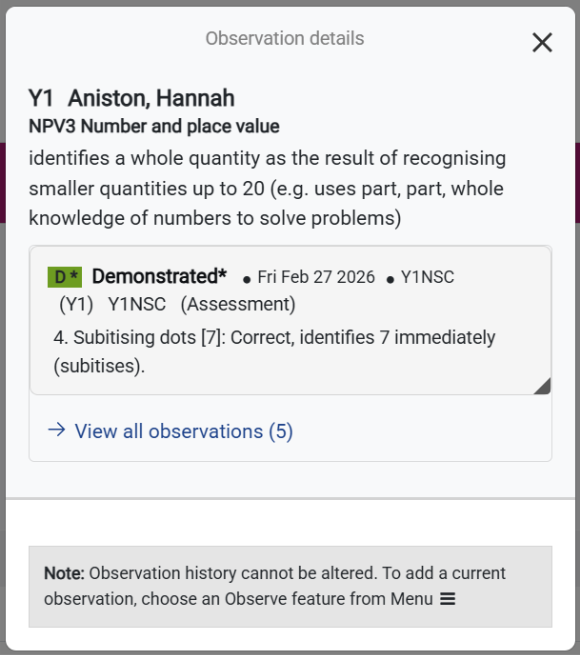
12. Select an indicator status cell for a student to view the indicator status information.

13. In the Student observation details pop-up screen, you will see the last observation recorded for the selected student. Indicator status recorded from the Year 1 Number Screening Check is labelled 'Y1NSC'.
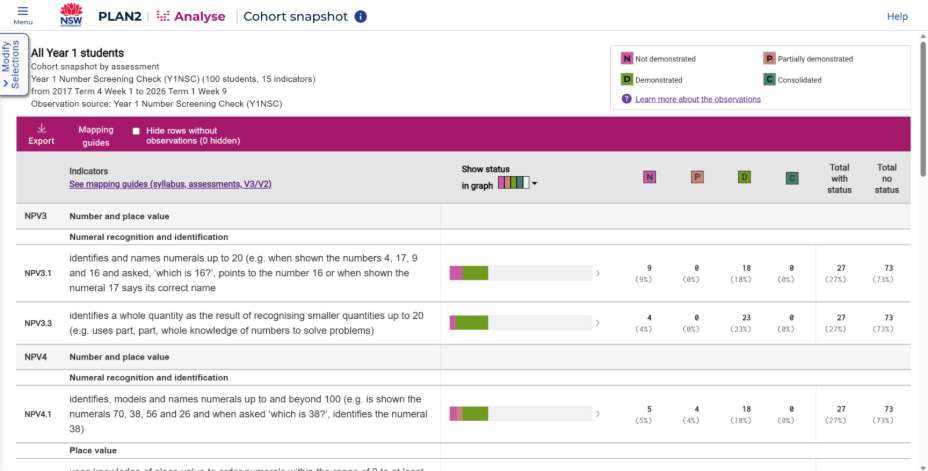
14. The cohort snapshot data table will display the indicators data across each status for all students.
15. Please note, withdrawn students will not have any data recorded in PLAN2 and observations will reflect in PLAN2 for a student only after their assessment has been lodged in Y1NSC app.