
Overview
- Teachers are able to view a list of students in classes or groups.
- Teachers are able to view each student's completion or lodgement status.
- Teachers are able to view each student's assessment analysis.
Viewing student assessment information
Open the Year 1 Number Screening Check online tool then follow these steps:
1. In the student list page, each student’s assessment completion status and date assessed for lodged assessments or last activity date for in progress assessments will be displayed. The total students in the class/group are listed on the bottom left of this page.
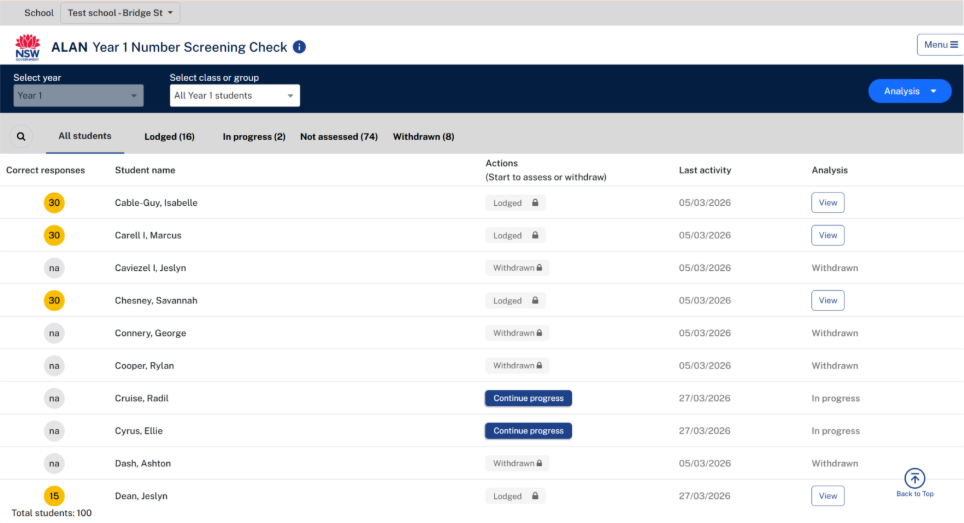
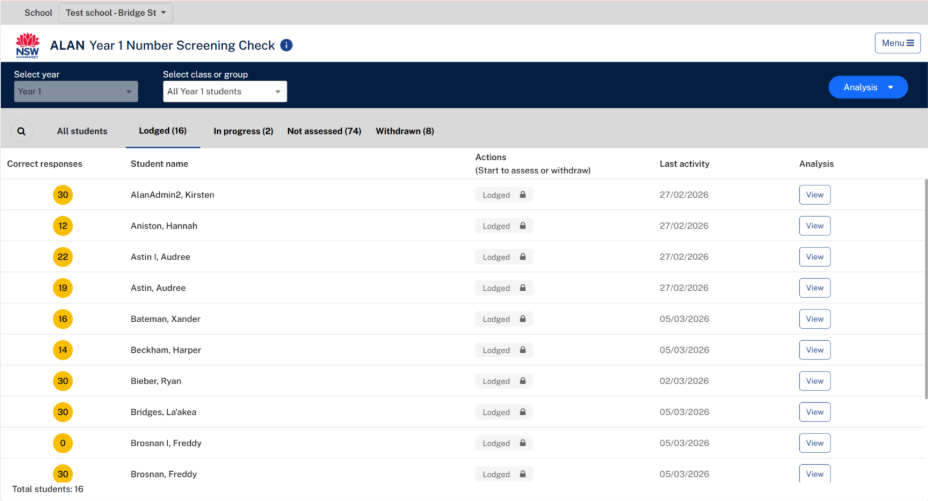
2. Select the tabs to view a list of students who are Lodged, In progress, Not assessed and Withdrawn. For example, select the Lodged button to view a list of students who are lodged.
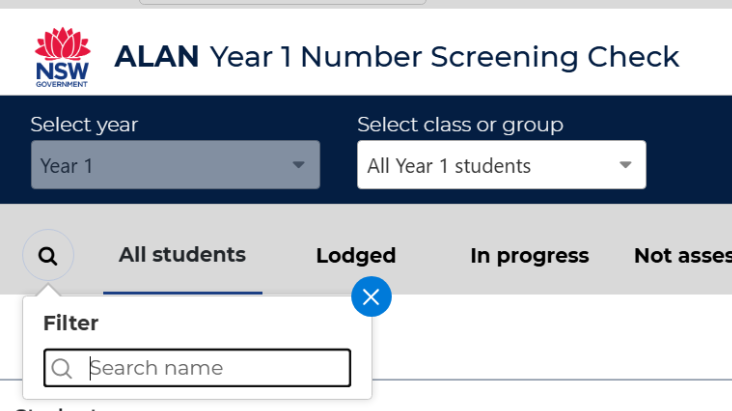
3. Use the Search option to Search by student name.
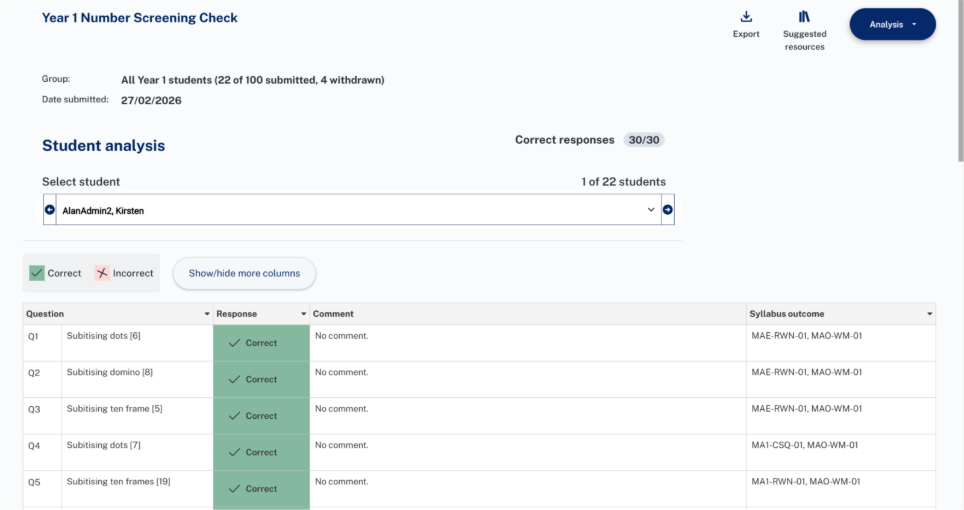
4. Once the assessment is lodged for a student, score (out of 30) is displayed in the correct responses column and analysis column displays a View button. Select the View button to show the Student analysis report.

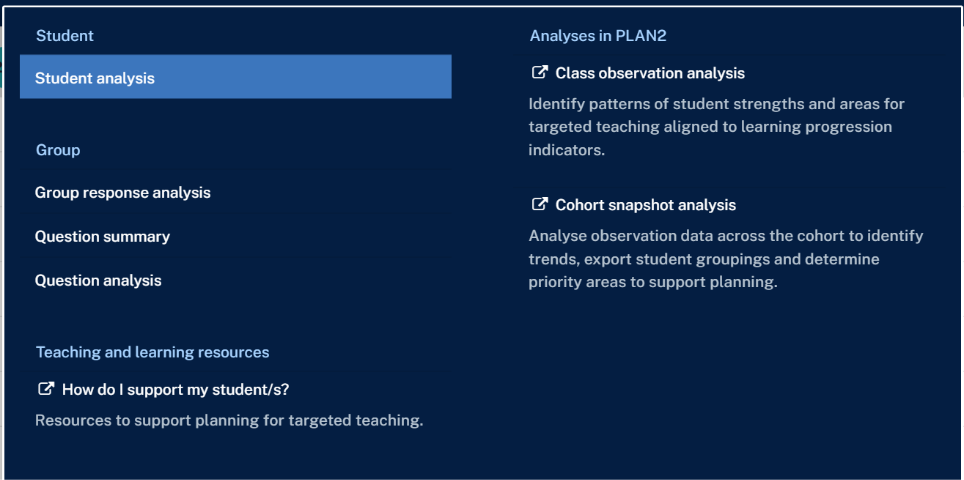
5. There are additional analysis reports available in the Analysis menu as well as links to PLAN2 to view learning progression data.
6. Selecting the 'How do I support my student/s?' link opens the resources page for Y1NSC in a new tab.
Points to note:
- All reports and links to PLAN2 open in a new tab. Please use the original Y1NSC app tab to navigate and use other functions in the app.
- You should lodge student assessments in your own roll class. You would be able to view data for all students on selecting 'All Year 1 students'.
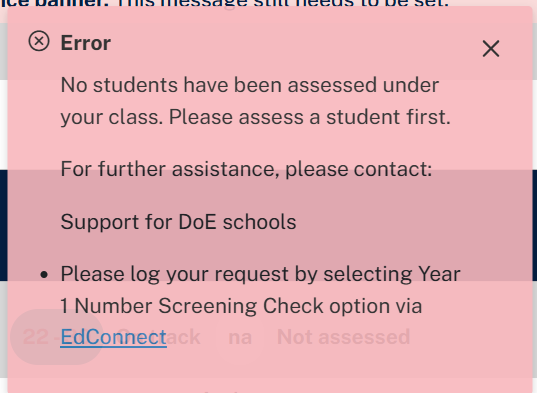
- You will see this message if you select any of the analysis reports within Y1NSC app in the Analysis menu and no student lodgements have been completed for the corresponding class/group selected.
- Student in multiple classes/group:
- If a student is in multiple classes/groups and lodgement is started in one class/group then you would be able to continue the assessment from any class/group by selecting the Continue progress button for the corresponding student.
- Same applies for viewing analysis data, you can view results by navigating to any of the class/group for the student.