Overview
- Teachers can mark each question as correct or incorrect. Each page displays one question at a time.
- Teachers can select additional comments as they complete each question.
- Teachers can save their progress, exit the assessment and resume the assessment later.
Administer the Number Screening Check
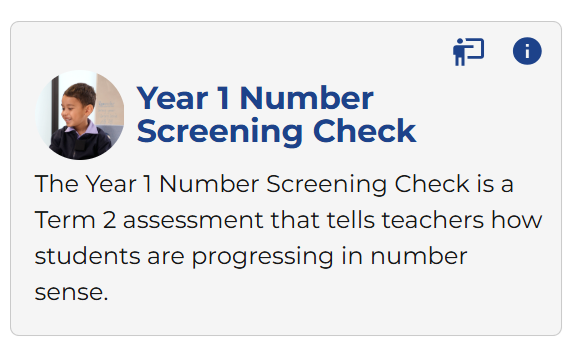
1. Select the Year 1 Number Screening Check tile to open the app.
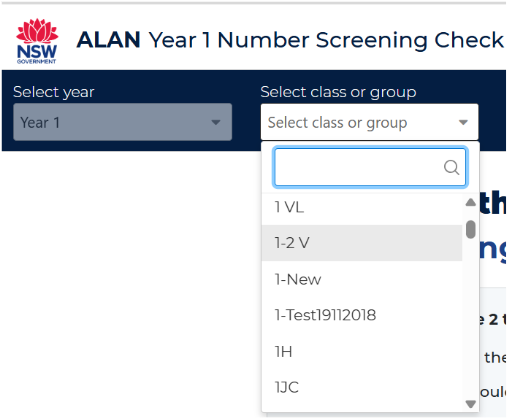
2. To start an assessment, select a class or group. A list of students for the selected class or group will display.
3. If a student is not assessed, the student is marked 'Not assessed'. Click 'Start' to start the assessment for this student.

4. If you have started and paused a student's assessment, the student is marked 'Continue progress'. To resume the Year 1 Number Screening Check for this student, click the 'Continue progress' button.


5. The first page of the assessment displays the name of the student, confirming the selection. Click ‘Start assessment’ or 'Continue' to proceed with the assessment.
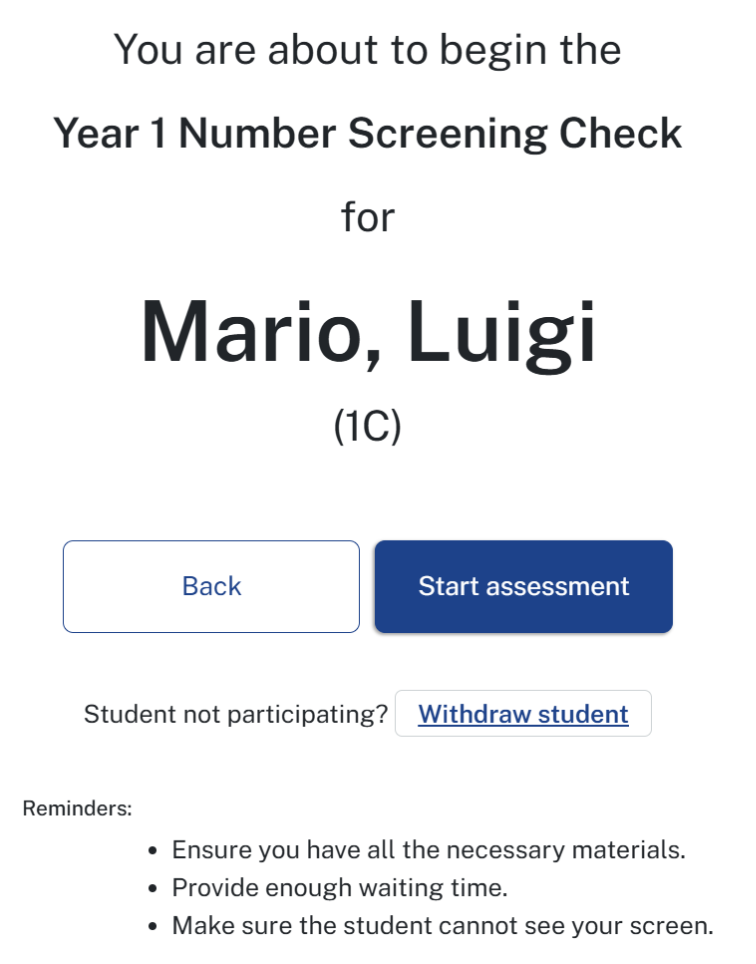
6. When beginning the assessment, confirm the name of the student.
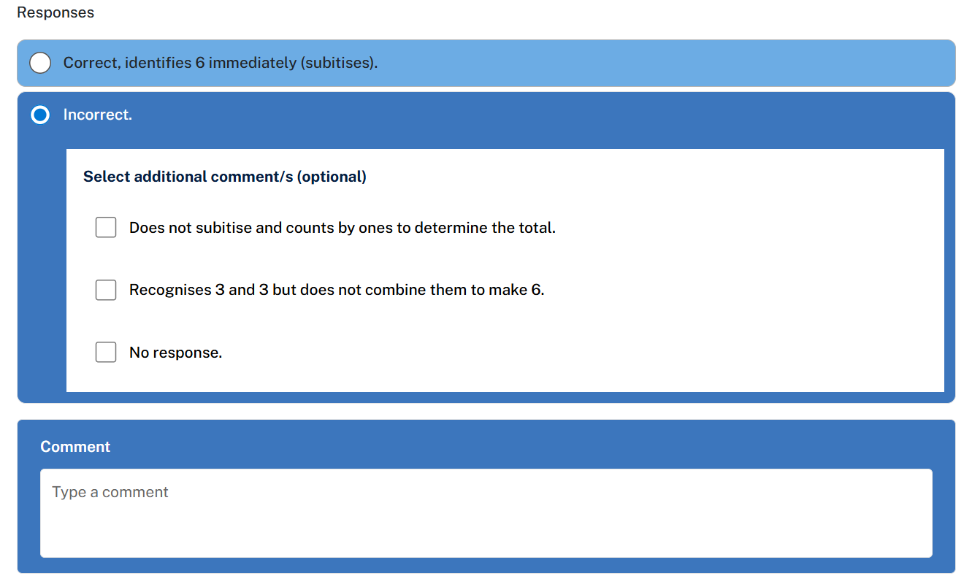
7. Mark the student's response to each question as correct or incorrect. All questions must be answered to successfully lodge the assessment. There are 2 practice questions (not marked then 30 assessment questions.
8. Select additional comments from the options provided or enter them in the comments field. Additional comments are optional.
9. Note: each time a question is answered, the progress bar at the top will indicate the number of questions answered out of the total number of questions (30).

10. View the list of All’, Answered, Not answered and Flagged questions by selecting the ‘Go to’ button. This opens a pop-up which then allows a selection of any question for quick navigation.
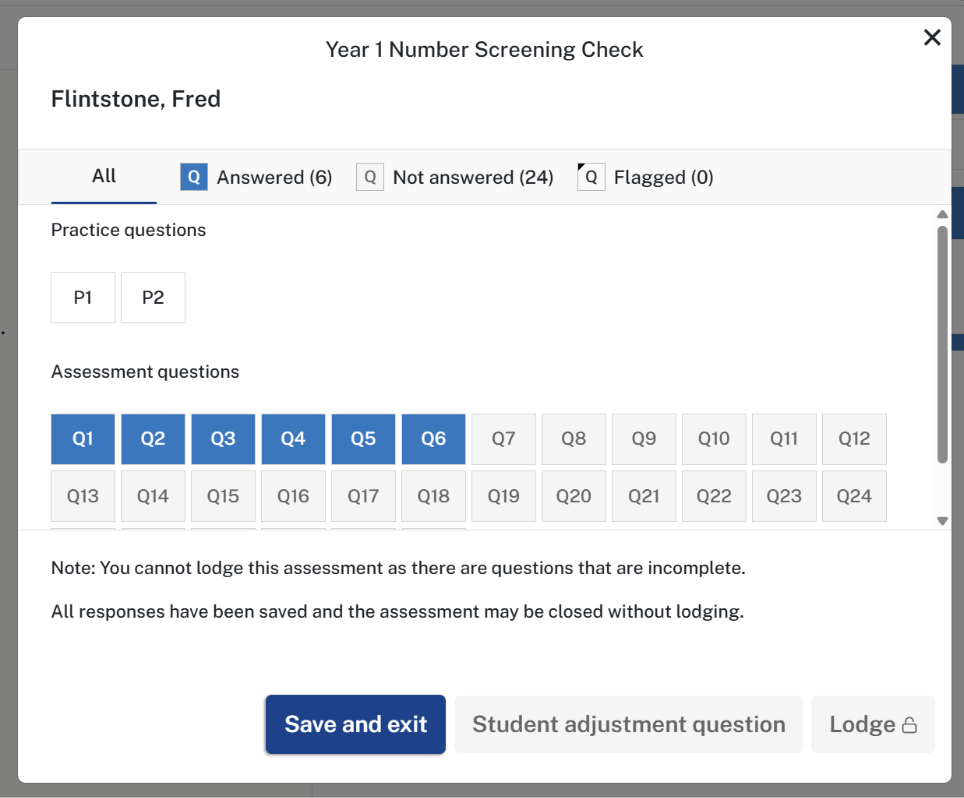
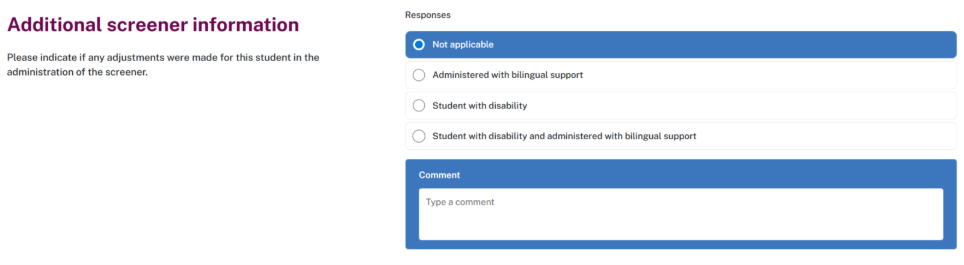
11. Record information regarding any adjustments once all questions have been answered. Select one of the values displayed and add comments if applicable.
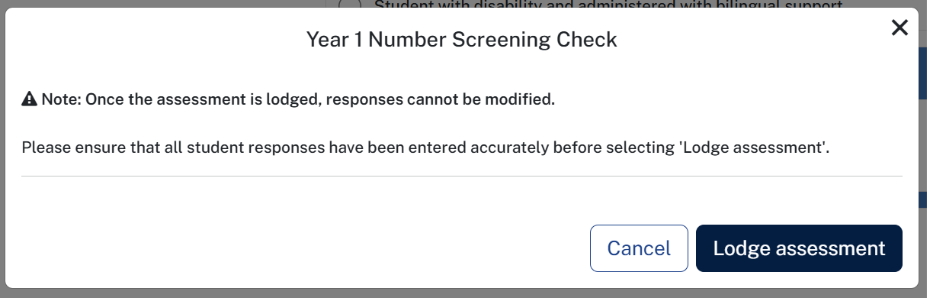
12. When all questions including the additional screener are answered, the lodge option is enabled. Select Lodge to lodge the assessment.

13. Review and confirm lodgement by selecting 'Lodge assessment'.
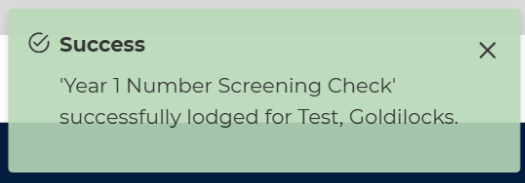
14.Once lodged, a success message will be displayed. You will automatically return to the student listing page.
15. You may pause/exit the assessment any time. Click the Exit button at any time to exit the screen. The responses and comments will be saved so they will be available the next time an assessment is accessed for a given student.

16. Clicking on the NSW logo navigates to the NSW education website and clicking on the Year 1 Number Screening Check text navigates to the landing page of the app.

17. Clicking on the i info icon displays the modal with the same instructions that is visible on the landing page of the app. 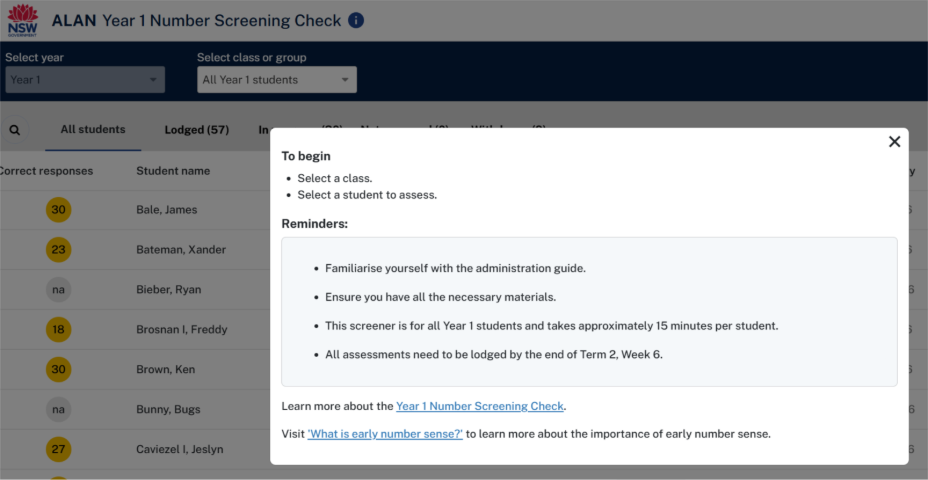
18. Clicking on Help navigates you to the help guides for the app.